Most people type vague requests into Claude Code and wonder why the output feels generic. The problem isn’t the tool. It’s the prompt.
Claude Code is Anthropic’s terminal-based AI agent that reads your files, writes code, runs commands, and executes multi-step workflows directly on your machine.
But here’s what most guides won’t tell you: the same prompt structure that works in the Claude chat window falls flat in Claude Code. You need prompts built for an agent that can do things, not just say things.
I’ve spent months testing Claude Code prompts across coding projects, marketing workflows, competitive research, and business operations. This collection covers the ones that actually produce usable results, organized by what you’re trying to accomplish.
Whether you’re a developer managing a codebase or a business owner who’s never opened a terminal, there’s something here for you.
New to the tool? Start with our complete beginner’s guide to Claude Code to get set up first. Already comfortable with the basics? Keep reading.
(And if you prefer a visual, no-terminal experience, check out Claude Cowork, the non-developer version Anthropic built for the rest of us.)
Why Most Claude Code Prompts Waste Your Time (And What Works Instead)
Here’s a prompt I see all the time:
Fix my code
Three words. Zero context. Claude Code will try its best, but “its best” without direction means guessing what’s broken, guessing what you want, and guessing how careful to be. The result? You’ll waste time reviewing changes you didn’t ask for.
What are Claude Code prompts? Claude Code prompts are specific instructions you type into Anthropic’s terminal-based AI agent to complete tasks on your computer.
Unlike regular Claude chat prompts, Claude Code prompts can read files, write code, run commands, and execute multi-step workflows directly in your local environment.
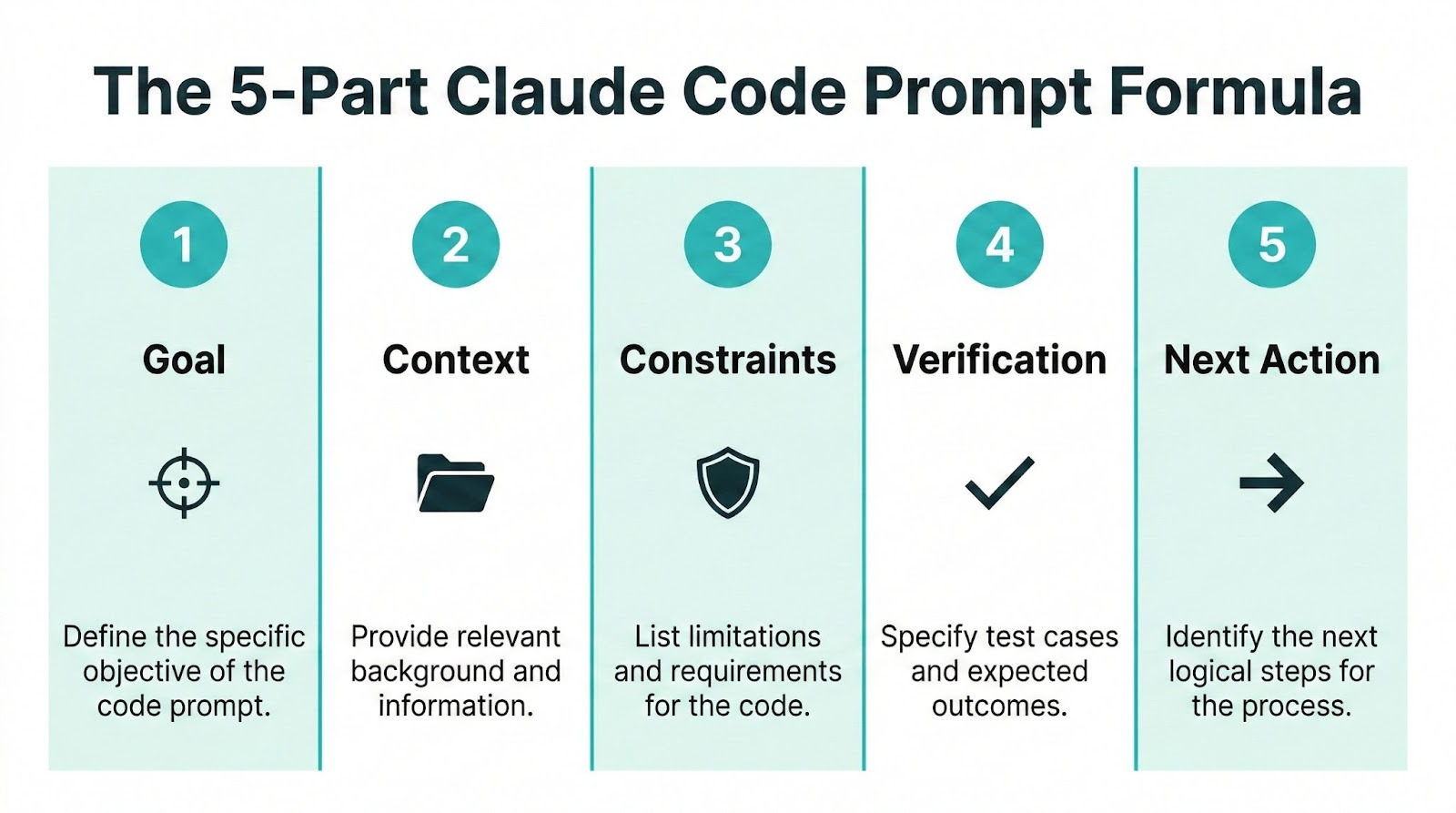
The prompts that actually work share five parts. I call it the prompt anatomy:
- Goal: What you want done, stated clearly
- Context: What Claude needs to know about the project, files, or situation
- Constraints: Boundaries, limits, things to avoid
- Verification: How Claude should check its own work
- Next Action: What happens after the main task is complete
You don’t need all five every time. Short tasks might only need a goal and a constraint. But for anything complex, skipping verification or context is what turns a 10-minute task into an hour of cleanup.
Let me show you what this looks like in practice.
20 Claude Code Prompts That Actually Get Results
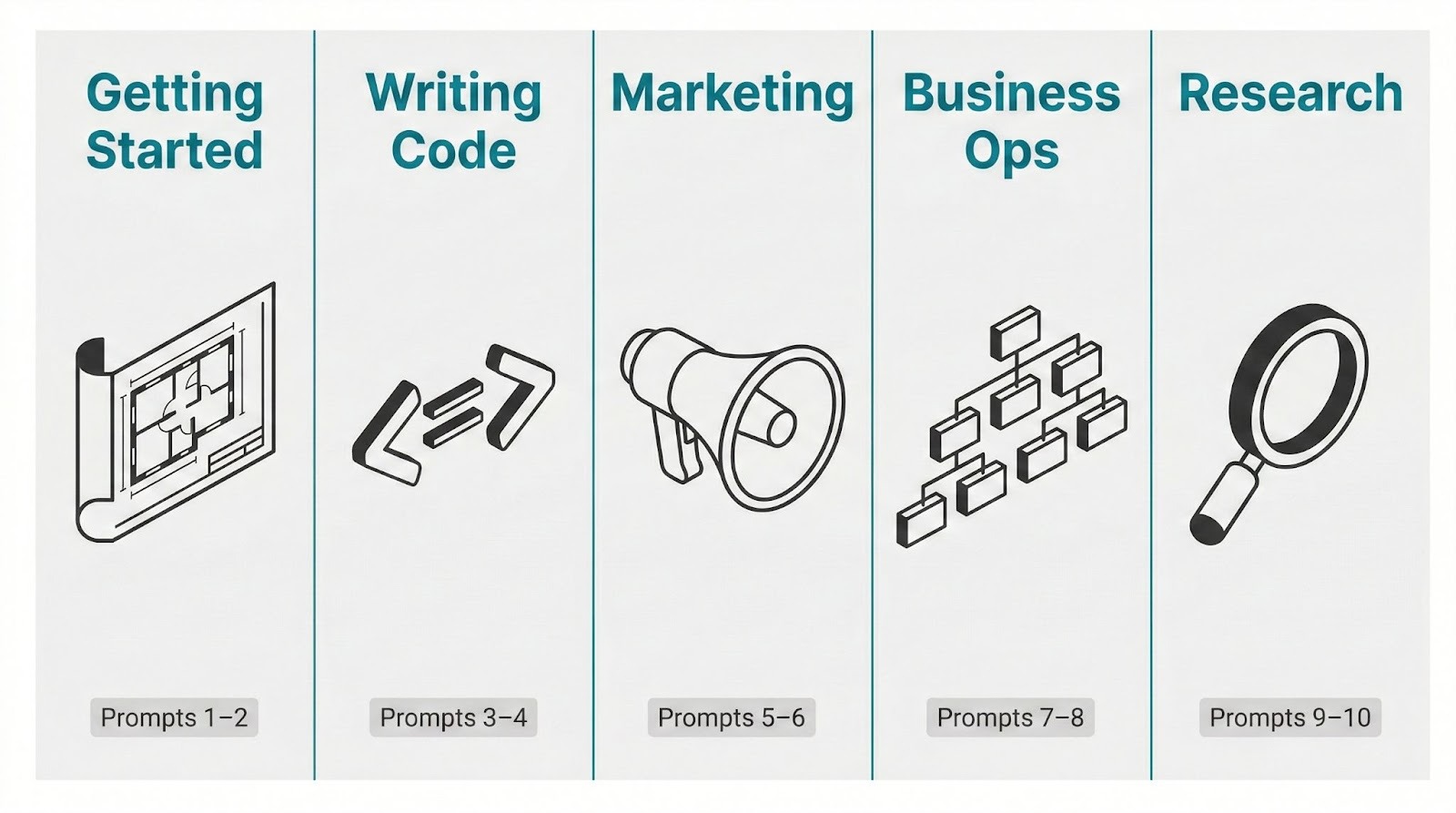
These prompts are organized by what you’re trying to accomplish, not by how technical you are. Each one includes context on when to use it, the prompt itself, and a quick tip to get better results.
Prompts for Getting Started (Repo & Project Setup)
These are the prompts you’ll use when you first open Claude Code in a new project. They help Claude understand your codebase so every future prompt works better.
1. The Repo Onboarding Prompt
Use this when you open Claude Code in a project for the first time, or when you’ve inherited a codebase you didn’t build.
Read the entire project structure. Identify the main language, framework,
package manager, entry points, and test setup. Map the key directories and
explain what each one does. List any configuration files and their purpose.
Don’t modify anything.
Pro tip: Run this before you ask Claude Code to change a single line. It’ll build a mental map that makes every follow-up prompt more accurate.
2. The CLAUDE.md Generator
Use this to create a project memory file that gives Claude Code persistent context across sessions.
Analyze this repository’s structure, coding conventions, and key patterns.
Generate a CLAUDE.md file that includes: the tech stack with versions,
project structure summary, naming conventions used in the code, testing
approach, build and deploy commands, and any patterns you see repeated
across files. Keep it under 500 lines. Write it as instructions Claude
should follow, not as documentation for humans.
Pro tip: CLAUDE.md is the single biggest force multiplier in Claude Code. It loads automatically every session, so Claude doesn’t start from scratch.
According to Anthropic’s own engineering guidelines, a well-crafted CLAUDE.md file dramatically improves prompt results. If you’re only going to do one thing after reading this article, it’s create a CLAUDE.md.
3. The Codebase Documentation Prompt
Use this when your project lacks proper docs and you need a quick overview for your team.
Read the codebase and generate developer documentation covering:
architecture overview, data flow between major components, API endpoints
with their request/response formats, environment variables required, and
setup instructions for a new developer. Write it as a README.md that a
mid-level developer could follow without asking questions.
Pro tip: Tell Claude to write for a specific audience (like “mid-level developer”) to control how much it explains versus assumes.
Prompts for Writing and Fixing Code
The core of what Claude Code was built for. These prompts go beyond “fix my bug” and give Claude the structure to do the job right.
4. The Debug Prompt
Use this when tests fail and you can’t figure out why.
Run the test suite with [your test command, e.g., npm test]. Identify all
failing tests. For each failure: explain what the test expects, what
actually happened, and why. Then fix the root cause, not just the
symptoms. After fixing, run the tests again to verify everything passes.
Don’t change any test expectations unless the test itself is wrong.
Pro tip: That last constraint (“don’t change test expectations”) is critical. Without it, Claude sometimes “fixes” failures by rewriting the tests to match broken behavior. I learned this the hard way.
5. The Safe Refactoring Prompt
Use this when you need to clean up code without breaking functionality.
Refactor [file or module name] to improve readability and reduce
duplication. Preserve all existing behavior exactly. Run the existing tests
before making changes to establish a baseline. Make changes incrementally
and run tests after each change. If any test fails, revert the last change
and explain what went wrong. Create a git commit for each successful
refactoring step.
Pro tip: The “commit after each step” instruction creates a safety net. If anything breaks three steps later, you can roll back to the last working commit.
6. The Feature Implementation Prompt
Use this when you’re adding something new to the codebase.
Implement [feature description]. Before writing code, read the existing
patterns in [relevant directory] and follow the same structure. Write tests
first, then implement until tests pass. Use the naming conventions from our
CLAUDE.md. Handle edge cases for [specific cases you’re worried about].
After implementation, run the full test suite and fix any regressions.
Pro tip: “Write tests first” pushes Claude Code into a test-driven workflow where it’s verifying its own work as it goes. Much better results than code-first approaches.
7. The Code Review and PR Description Prompt
Use this before submitting a pull request.
Review all changes in the current branch compared to main. Check for:
security issues, performance problems, missing error handling, and
inconsistencies with the codebase patterns. Then generate a pull request
description with: a summary of what changed and why, a list of files
modified with brief explanations, testing notes, and anything a reviewer
should pay attention to. Format it in markdown.
Pro tip: Run this as your last step before pushing. It’ll catch things you’d miss at 5pm on a Friday. I’ve caught exposed API keys this way. Twice.
Prompts for Marketing and Content
Yes, Claude Code works for marketing. It can analyze your content library, audit SEO performance, generate copy, and structure campaigns. These prompts are where most guides have a blind spot, and where you’ll find some of the biggest time savings.
8. The Content Audit Prompt
Use this when you need to understand what’s working and what’s missing in your content.
Read all markdown files in [content directory]. For each piece, extract:
title, word count, main topic, target keyword (if identifiable from the
title or first paragraph), and publish date. Create a summary table sorted
by topic. Then identify content gaps: topics your competitors likely cover
that you don’t. Output as a CSV file I can open in a spreadsheet.
Pro tip: Point Claude Code at your actual blog folder or CMS export. It works with the files on your machine, which means no copy-pasting into a chat window.
Want 50+ more marketing prompts for Claude? Browse our full AI prompt library with templates for every use case.
9. The SEO Keyword Clustering Prompt
Use this when you’ve a raw list of keywords and need to organize them into content themes.
Read the keyword list in [file path]. Group keywords into topic clusters
based on search intent similarity. For each cluster: name the cluster,
list the keywords, identify the likely search intent (informational,
transactional, navigational), and suggest a primary keyword for targeting.
Sort clusters by estimated opportunity (number of keywords in each).
Output as a markdown table.
Pro tip: Export your keyword data from Ahrefs, SEMrush, or even Google Search Console as a CSV first. Then point Claude Code at the file.
10. The Email Sequence Prompt
Use this to draft a multi-email sequence from a campaign brief.
Read the campaign brief in [file path]. Write a [number]-email sequence
for [audience]. Each email needs: a subject line (under 50 characters),
preview text, body copy under 200 words, and a single CTA. Email 1 should
establish the problem. Email 2 should share a relevant insight. Email 3
should present the solution. Adjust the tone to be conversational but
professional. Save each email as a separate markdown file in an /emails
directory.
Pro tip: Create a brief document first with your product details, audience, and offer. Claude Code produces dramatically better copy when it can read your source material rather than improvise.
11. The Ad Copy Variant Prompt
Use this when you need multiple ad versions to test.
Read the product description in [file path]. Generate 5 variations of ad
copy for [platform: Google Ads / Meta / LinkedIn]. Each variation should
test a different hook: pain point, social proof, curiosity, benefit-first,
and contrast (before/after). Keep headlines under [character limit] and
descriptions under [character limit]. Save all variants to a single
markdown file with labels for each hook type.
Pro tip: Specify the platform’s character limits in the prompt. Claude Code doesn’t inherently know that Google Ads headlines cap at 30 characters. You have to tell it.
Prompts for Business Operations
Claude Code isn’t just for developers and marketers. If you work with files, data, or documents on your computer, you’ll find these prompts save hours.
12. The Competitive Analysis Prompt
Use this when you need a structured overview of your competitors.
I need a competitive analysis of [your company] versus [competitor 1,
competitor 2, competitor 3]. Read any existing files I have in [directory]
about these companies. For each competitor, summarize: their main product
offering, pricing model, target audience, key differentiators, and biggest
weaknesses based on public information. Format as a comparison table with
our company in the first column. Save to competitive-analysis.md.
Pro tip: Drop competitor PDFs, pricing pages (saved as HTML), or your own notes into a folder before running this. The more source material Claude Code can read, the better the output.
13. The Meeting Notes to Action Items Prompt
Use this right after a meeting to turn raw notes into organized next steps.
Read the meeting notes in [file path]. Extract: key decisions made, action
items with assigned owners (if mentioned), open questions that need
follow-up, and deadlines. Format as a structured summary with sections for
each. If owners aren’t specified, mark those items as “unassigned.” Save to
[date]-meeting-actions.md.
Pro tip: Even messy, stream-of-consciousness meeting notes work here. Claude Code is surprisingly good at parsing unstructured text into organized summaries.
14. The File Organization Prompt
Use this when your project directory is a mess and you need to sort things out.
Scan [directory path] and categorize all files by type and purpose.
Suggest a folder structure that follows common conventions for this type of
project. Before moving anything, show me the proposed structure and wait
for confirmation. Then reorganize the files, updating any import paths or
references that break. Verify nothing is broken after the move.
Pro tip: The “wait for confirmation” instruction is important. You don’t want Claude Code reorganizing 500 files without your approval. It’ll respect this and pause for input.
15. The Report Generation Prompt
Use this when you’ve raw data and need a formatted report.
Read the data file at [file path]. Generate a report that includes: an
executive summary (3-4 sentences), key metrics highlighted with context
(up or down from what baseline), top 3 findings with supporting data
points, and recommended next steps. Format the report in markdown with
clear headings. Use plain language that a non-technical stakeholder can
understand. Save to reports/[report-name].md.
Pro tip: Works beautifully with CSVs, JSON, and even messy spreadsheet exports. If your data is in an Excel file, export it to CSV first for the cleanest results.
Prompts for Research and Learning
Claude Code’s ability to read, synthesize, and create files makes it a powerful research assistant. These prompts turn scattered information into structured knowledge.
16. The Topic Deep-Dive Prompt
Use this when you need to quickly understand a new topic from your existing materials.
Read all files in [directory] related to [topic]. Synthesize the
information into a comprehensive brief covering: current state of [topic],
key players or frameworks involved, common approaches and their trade-offs,
and where things are heading. Cite which file each insight comes from.
Keep the brief under 1,000 words. Save to research/[topic]-brief.md.
Pro tip: This works best when you’ve already collected source material (PDFs, articles saved as text, notes). Claude Code researches your files, not the internet. You’ll want to pair it with web research you do separately for the strongest results.
17. The Source Synthesis Prompt
Use this when you’ve multiple documents about the same topic and need one unified summary.
Read these files: [file 1], [file 2], [file 3]. Identify where they
agree, where they contradict each other, and what’s unique to each source.
Write a synthesis that presents the consensus view first, then the
disagreements with context on each position. Attribute every claim to its
source file. Save to synthesis-[topic].md.
Pro tip: This is gold for literature reviews, vendor comparisons, or consolidating feedback from multiple stakeholders. The attribution requirement keeps Claude Code honest about where it’s pulling information from.
18. The Interview Transcript Analysis Prompt
Use this when you’ve got raw interview or call transcripts and need to extract insights.
Read the transcript at [file path]. Extract: main themes discussed
(with direct quotes supporting each theme), sentiment for each topic
(positive, negative, mixed), specific feature requests or pain points
mentioned, and any action items or commitments made. Group insights by
theme, not chronologically. Save to analysis/[interviewee]-insights.md.
Pro tip: Works with customer interviews, user research calls, podcast transcripts, and even meeting recordings that have been transcribed. The “group by theme, not chronologically” instruction prevents Claude from just summarizing the conversation in order.
19. The Documentation-to-Tutorial Prompt
Use this when you’ve technical docs and need to create a beginner-friendly tutorial.
Read the documentation files in [directory]. Create a step-by-step
tutorial for [specific task] aimed at someone who has never used [tool or
technology]. Use simple language. Include every command they need to type.
Add a “what you should see” description after each step so they know it
worked. Include a troubleshooting section for the 3 most common errors.
Save to tutorials/[task-name].md.
Pro tip: The “what you should see” instruction makes tutorials dramatically more useful. Beginners don’t just need to know what to type. They need to know it’s worked.
20. The Learning Path Generator Prompt
Use this when you’re learning something new and want a structured study plan.
I want to learn [topic/skill]. My current level is [beginner/intermediate/
advanced]. I have [time available, e.g., 2 hours per day for 4 weeks].
Create a learning path with: weekly goals, specific resources to study
(suggest types, not URLs), practice exercises for each week, and
milestones to check my progress. Be realistic about pacing. Save to
learning-path-[topic].md.
Pro tip: Specify your current level honestly. The difference between a beginner and intermediate learning path is significant, and Claude Code calibrates its suggestions accordingly. Don’t say intermediate if you’re just starting out.
How to Build Your Own Claude Code Prompts (The 5-Part Formula)
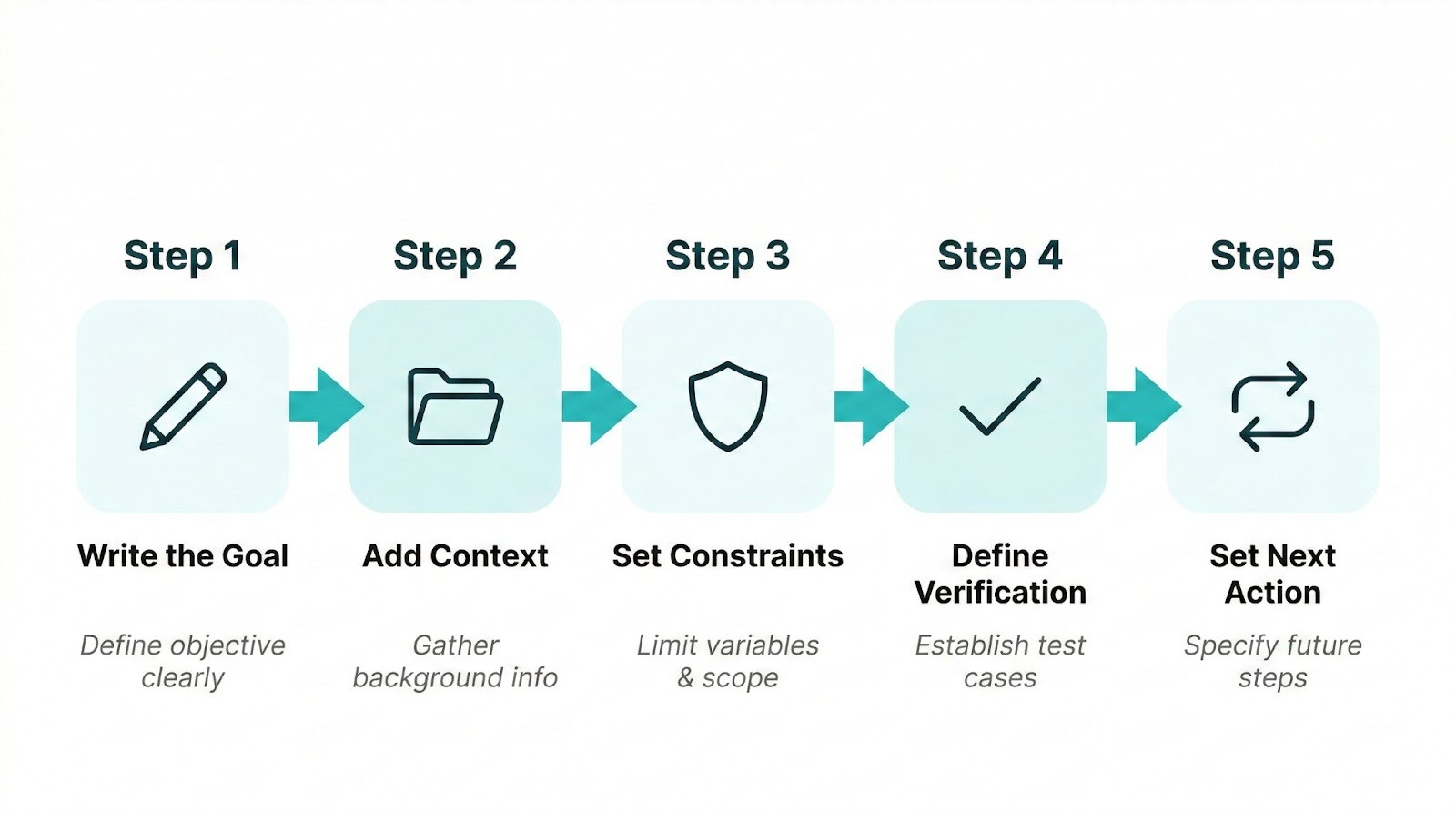
The prompts above are starting points. The real skill is building your own. Here’s the formula you’ll use:
Step 1: State Your Goal in One Sentence What do you want Claude Code to do? Be specific. “Improve my code” is weak. “Refactor the authentication module to use JWT tokens instead of session cookies” is strong.
Step 2: Provide the Context Claude Needs Point to specific files, directories, or documentation. Claude Code can read your filesystem, so use that. “Read the API routes in /src/routes before making changes” gives Claude Code the foundation it needs.
Step 3: Set Your Constraints Tell Claude Code what NOT to do. “Don’t modify any database migrations.” “Keep backward compatibility.” “Stay under 200 lines per file.” Constraints prevent Claude Code from being too creative in places you don’t want creativity.
Step 4: Add a Verification Step This is the one most people skip, and it’s the most important. “Run the tests after every change.” “Show me the diff before committing.” “Verify the output matches the expected format.” Verification catches mistakes before they snowball.
Step 5: Define the Next Action What happens after the task? “Create a git commit with a descriptive message.” “Save the report to /reports.” “List any follow-up tasks I should handle manually.” This prevents the awkward “okay, now what?” moment.
Here’s a bad prompt versus a good one:
Bad: Make the homepage faster
Good:
Analyze the homepage load performance in src/pages/index.tsx. Identify the
3 biggest performance problems. Fix each one while preserving the
current design and functionality. Don’t remove any features. Run
lighthouse after each fix and record the score improvement. Commit each
fix separately with a message explaining what improved and by how much.
See the difference? Same goal. One gives Claude Code a fighting chance. The other’s a guessing game.
And here’s the force multiplier: put your project-specific conventions, tech stack, and recurring instructions into a CLAUDE.md file. Every prompt you write becomes shorter and more effective because Claude Code already knows the context.
Think of CLAUDE.md as pre-loading steps 2 and 3 of the formula so you don’t have to repeat yourself.
Common Mistakes That Make Claude Code Prompts Fail
I’ve made all of these. You don’t have to.
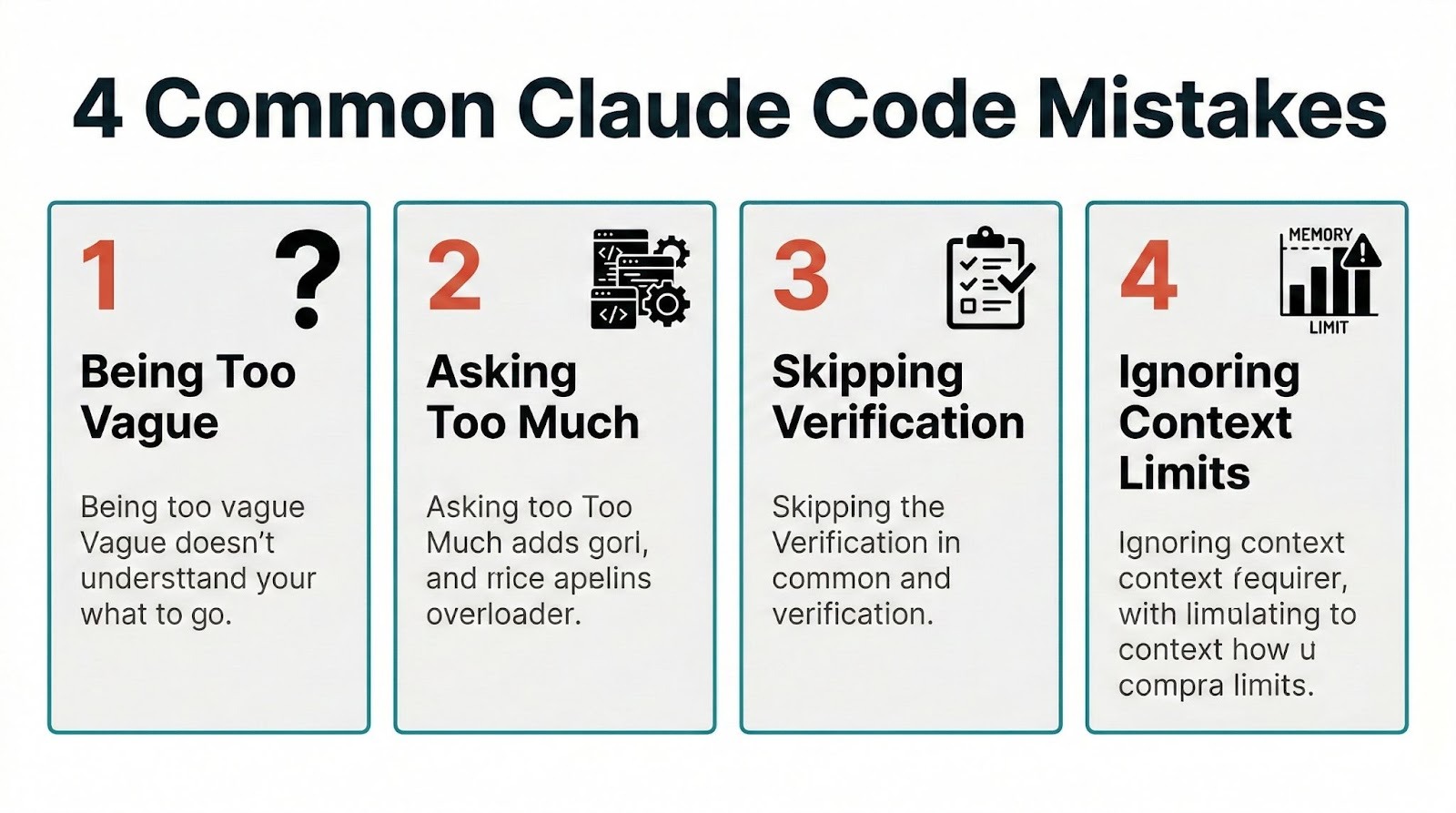
Mistake 1: Being Too Vague “Fix the bugs” gives Claude Code no direction. Which bugs? In which files? How should it verify the fix? Vague prompts produce vague results.
You’ve got to name the specific file, module, or problem you’re targeting.
Mistake 2: Asking for Too Much in One Prompt “Refactor the entire codebase, add tests for everything, update all docs, and deploy to staging” is four separate tasks. Claude Code handles them better as four separate prompts. Each task has different verification steps and different risks. Batch them and you’ll lose control.
Mistake 3: Skipping the Verification Step Without verification, Claude Code finishes the task and moves on. If it introduced a bug or misunderstood your goal, you won’t know until later. Always include a check: run tests, show the diff, compare output to a baseline.
It adds 10 seconds to the prompt and saves 30 minutes of debugging.
Mistake 4: Ignoring the Context Window Claude Code has a context limit. If you’re working in a massive codebase, don’t ask it to “read everything.” Point it to specific directories or files. Use the /context slash command to check how much room you’ve got left.
When context gets full, use /compact to compress the conversation and keep going.
If you’re running into common Claude mistakes to avoid, your prompts probably need more structure, not more words.
FAQ
What are Claude Code prompts?
Claude Code prompts are instructions you type into Anthropic’s command-line AI agent. Unlike regular Claude prompts in the chat interface, Claude Code prompts can trigger actions on your computer: reading files, writing code, running terminal commands, creating documents, and executing multi-step workflows.
Do I need to know how to code to use Claude Code prompts?
No. Many of the prompts in this guide cover marketing, business operations, and research tasks that don’t require any programming knowledge. You do need to be comfortable with a terminal (typing commands and pressing enter), but you don’t need to understand the code Claude writes.
What’s the difference between Claude Code prompts and regular Claude prompts?
Regular Claude prompts work in the chat window and produce text responses. Claude Code prompts work in your terminal and produce actions: files created, code written, commands executed, tests run.
Claude Code also has access to your local filesystem, which means it can read your project files and work with real data instead of hypothetical examples.
How many prompts can I run in one session?
There’s no hard limit on the number of prompts. The practical limit’s the context window, which tracks everything Claude’s read and generated during the session. When it gets full, use the /compact command to compress the conversation.
You can also use /clear to start fresh. For most tasks, a single session handles anywhere from 5 to 50 prompts before you’ll need to manage context.
Can I save and reuse Claude Code prompts?
Yes. Save any prompt as a markdown file in your project’s .claude/commands/ directory, and it becomes a custom slash command you can run anytime. For example, save your code review prompt as .claude/commands/review.md and run it with /review.
You can also create more structured reusable prompts as skills in the .claude/skills/ directory. Anthropic’s official documentation on custom commands covers the full setup process.
These 20 prompts are a starting point. The real power comes from adapting them to your specific workflow, building a CLAUDE.md file that teaches Claude your preferences, and creating custom commands for the prompts you use daily.
Our Claude Skills bundle includes pre-built CLAUDE.md files, slash command templates, and workflow configurations that make every prompt more powerful from day one. If you’d rather skip the setup and start producing, it’s the fastest shortcut I know.
Which prompt category are you testing first? Drop a comment below.