
Most people open Cowork, type a vague request, and wonder why the output feels… off.
Claude isn’t the problem. Your setup is.
Cowork is the most powerful way to use Claude for real business work. But it doesn’t reward improvisation. It rewards preparation. The difference between “meh” results and “did an AI actually do this?” results comes down to a handful of habits you’ll build in your first week.
These 15 claude cowork tips come from months of daily use across content production, file management, research synthesis, and client work. Each one’s got a copy-paste instruction or prompt you can steal right now.
No theory. No fluff. Just the stuff that actually moves the needle on your output quality.
Wait. Scratch that last line. Just the stuff that actually works.
What Is Claude Cowork? (Quick Primer)
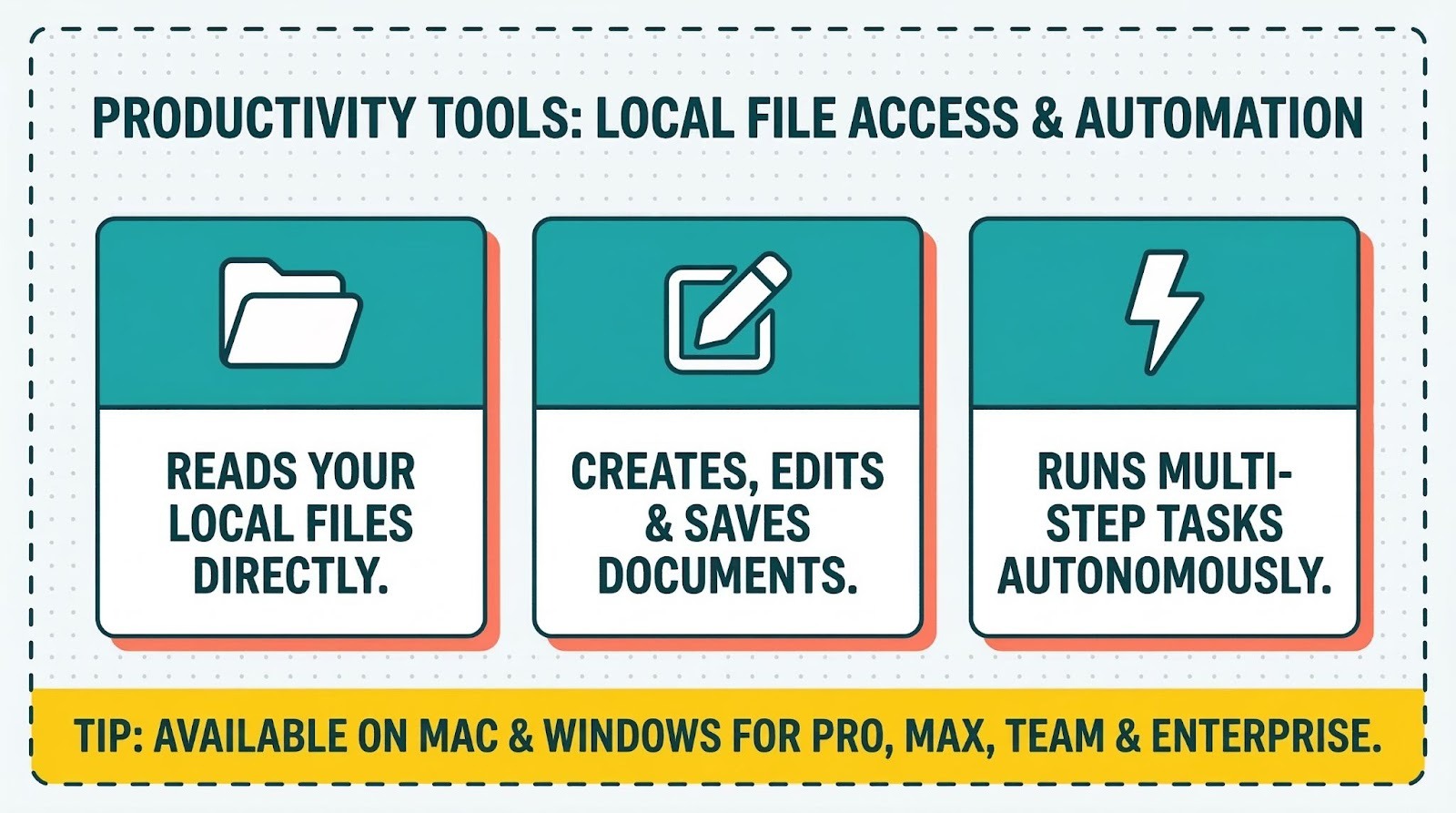
Claude Cowork is a feature inside the Claude Desktop app that gives Claude direct access to your local files, letting it read, edit, and create documents on your computer without manual uploads or downloads.
Think of it as having a capable assistant who can actually touch your filing cabinet, not just talk about it. It’s available on macOS and Windows for Pro, Max, Team, and Enterprise plans.
If you want the full walkthrough on what Cowork can do and how to set it up from scratch, check out our full Claude Cowork guide. This article assumes you’ve already got it running and want to get better results faster.
15 Claude Cowork Tips for Faster, Better Results
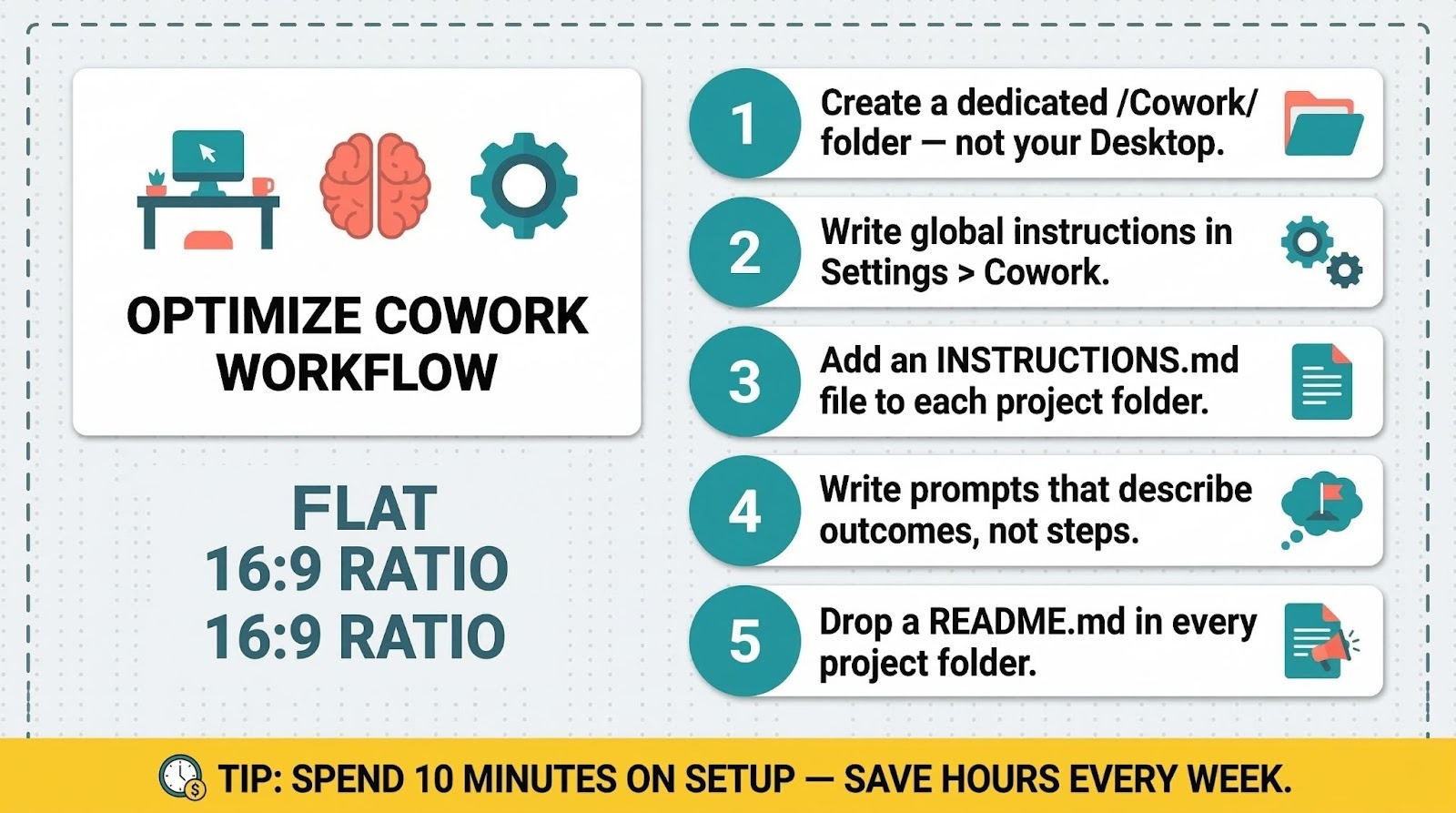
1. Create a Dedicated Cowork Folder (Don’t Point It at Your Desktop)
Your first instinct will be to give Claude access to your Desktop or Documents folder. Don’t.
When Claude scans a folder, it reads everything in it to build context. A cluttered Desktop with 200 random files doesn’t give Claude useful signal. It gives it noise. Your results get worse because Claude’s wasting attention on files that have nothing to do with your task.
Create a dedicated folder structure for Cowork projects instead:
~/Cowork/
├── client-reports/
├── content-drafts/
├── financial-data/
└── templates/
Pro tip: Keep each project in its own subfolder. When you point Cowork at ~/Cowork/client-reports/, Claude only sees what it needs to see.
2. Write Global Instructions Before Your First Task
Global instructions are the single biggest lever for improving Cowork output quality. They’re how you tell Claude how you work, what you expect, and what to avoid. And they apply to every single session automatically.
Most people skip this step entirely. Then they wonder why Claude’s tone feels generic or why it keeps producing markdown files when they wanted .docx.
Go to Settings > Cowork > Global Instructions and add something like this:
I run a small marketing agency. When creating documents, always use .docx format
unless I specify otherwise. Write in a direct, conversational tone. Avoid jargon.
Use short paragraphs. When you finish a task, list the files you created or modified
and where they’re saved.
Pro tip: Update your global instructions every few weeks as you notice patterns in what you keep correcting.
3. Add Folder-Specific Instructions for Recurring Projects
Global instructions cover the basics. But if you’ve got a project folder you return to weekly, like monthly reports or client deliverables, you can add instructions that apply only when Claude’s working inside that folder.
Claude can read and even update these instructions during a session. That means your project context gets smarter over time without you doing extra work.
Drop a plain text file in the project folder:
Filename: INSTRUCTIONS.md
This folder contains Q1 2026 client reports for Acme Corp.
– Use the template in /templates/acme-report-template.docx
– Client contact: Jane Smith, VP Marketing
– Always include a one-page executive summary as the first section
– Export charts as PNG files in the /charts subfolder
– Tone: professional but approachable, no corporate buzzwords
Pro tip: Name it something obvious like INSTRUCTIONS.md or CLAUDE-CONTEXT.md so both you and Claude can find it fast.
4. Describe Outcomes, Not Steps
This is the claude cowork trick that separates beginners from power users.
Cowork’s built on an agentic architecture. Claude creates its own plan, breaks tasks into subtasks, and coordinates sub-agents to get the work done. When you micromanage the steps, you’re fighting the system instead of using it.
Bad prompt:
Open the file sales-data.csv. Read column B. Calculate the average.
Create a new spreadsheet. Put the average in cell A1. Save as summary.xlsx.
Good prompt:
Analyze sales-data.csv and create a summary spreadsheet with key metrics
including averages, totals, and month-over-month trends. Format it so I
can share it directly with my team without editing.
The second prompt gives Claude room to make smart decisions about layout, formatting, and what “key metrics” means in context. You’ll almost always get better results.
Pro tip: Start prompts with what you want to end up with. “Create a…” or “Produce a…” or “I need a…” works better than step-by-step instructions.
5. Drop a README.md File in Every Project Folder
This one takes 30 seconds and it’ll dramatically improve Claude’s understanding of your project.
A README.md file gives Claude instant context about what’s in the folder, what the project’s about, and any important details it should know. You’d write one for a coding project. Your Cowork folders deserve the same treatment.
Filename: README.md
# Q1 Content Calendar
This folder contains blog drafts for our company blog.
## Current status
– 8 of 12 posts drafted
– Posts in /drafts need editing
– Final versions go in /published
## Style notes
– Target audience: small business owners
– Tone: helpful, not salesy
– Average length: 1,200-1,500 words
– Always include a meta description at the top of each file
Pro tip: Ask Claude to generate the README for you. Just say: “Look at the files in this folder and create a README.md that summarizes what’s here and how it’s organized.”
6. Always Review the Plan Before Clicking “Run”
When you give Cowork a task, Claude doesn’t just start executing immediately. It’ll show you a plan first, breaking down what it intends to do and in what order.
This is your safety net. And too many people blow right past it.
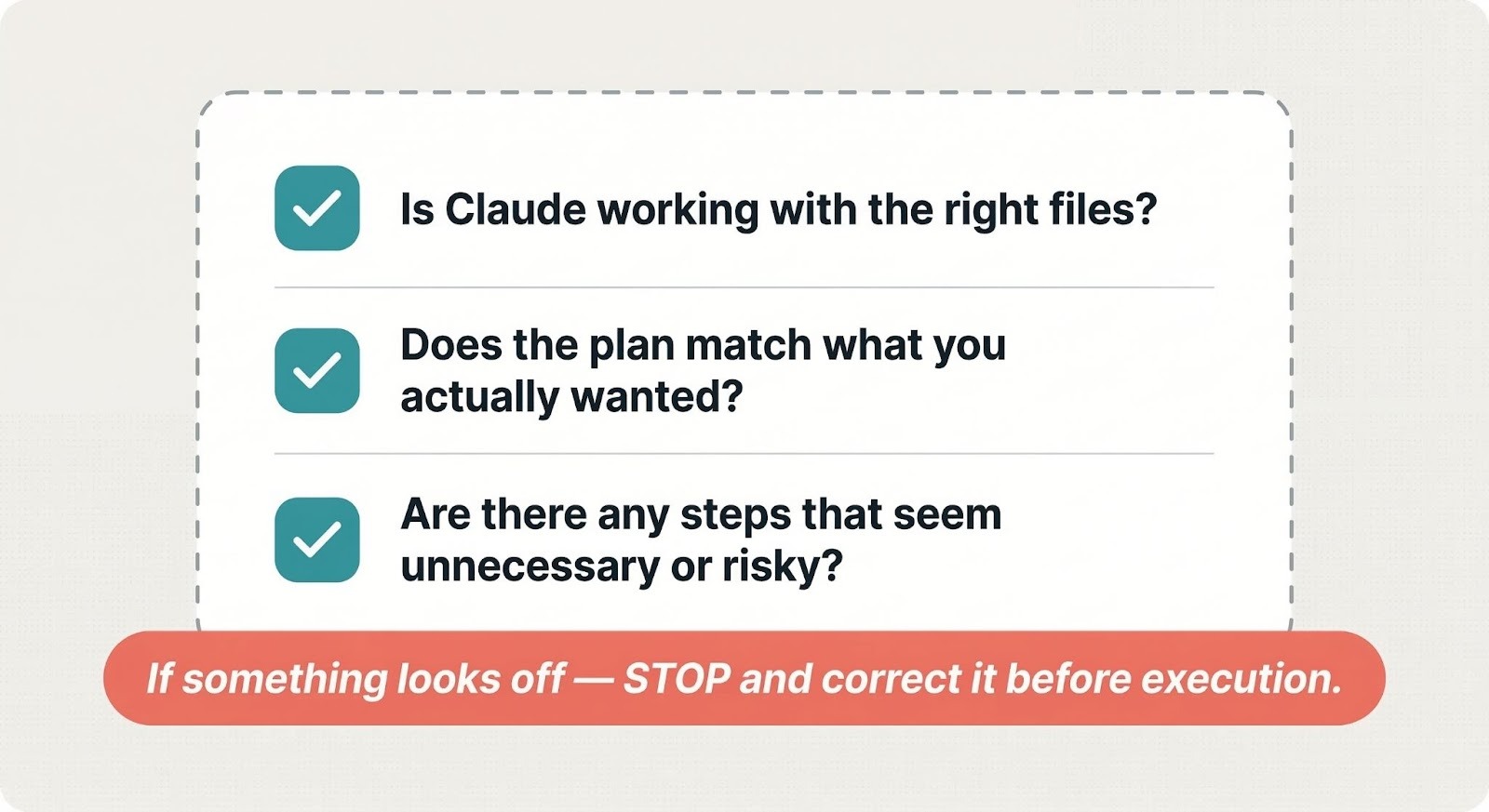
I’ve caught Claude misinterpreting my intent at the plan stage dozens of times. A two-second review saved me from having to redo the entire task. Here’s what to look for:
- Is Claude working with the right files?
- Does the plan match what you actually wanted?
- Are there any steps that seem unnecessary or risky?
If something looks off, tell Claude before it starts. Steering at the plan stage costs you 10 seconds. Fixing a completed task costs you 10 minutes.
Pro tip: If the plan looks overly complex, your prompt probably wasn’t clear enough. Simplify and resubmit.
7. Use Connectors to Pull From Gmail, Notion, and Google Calendar
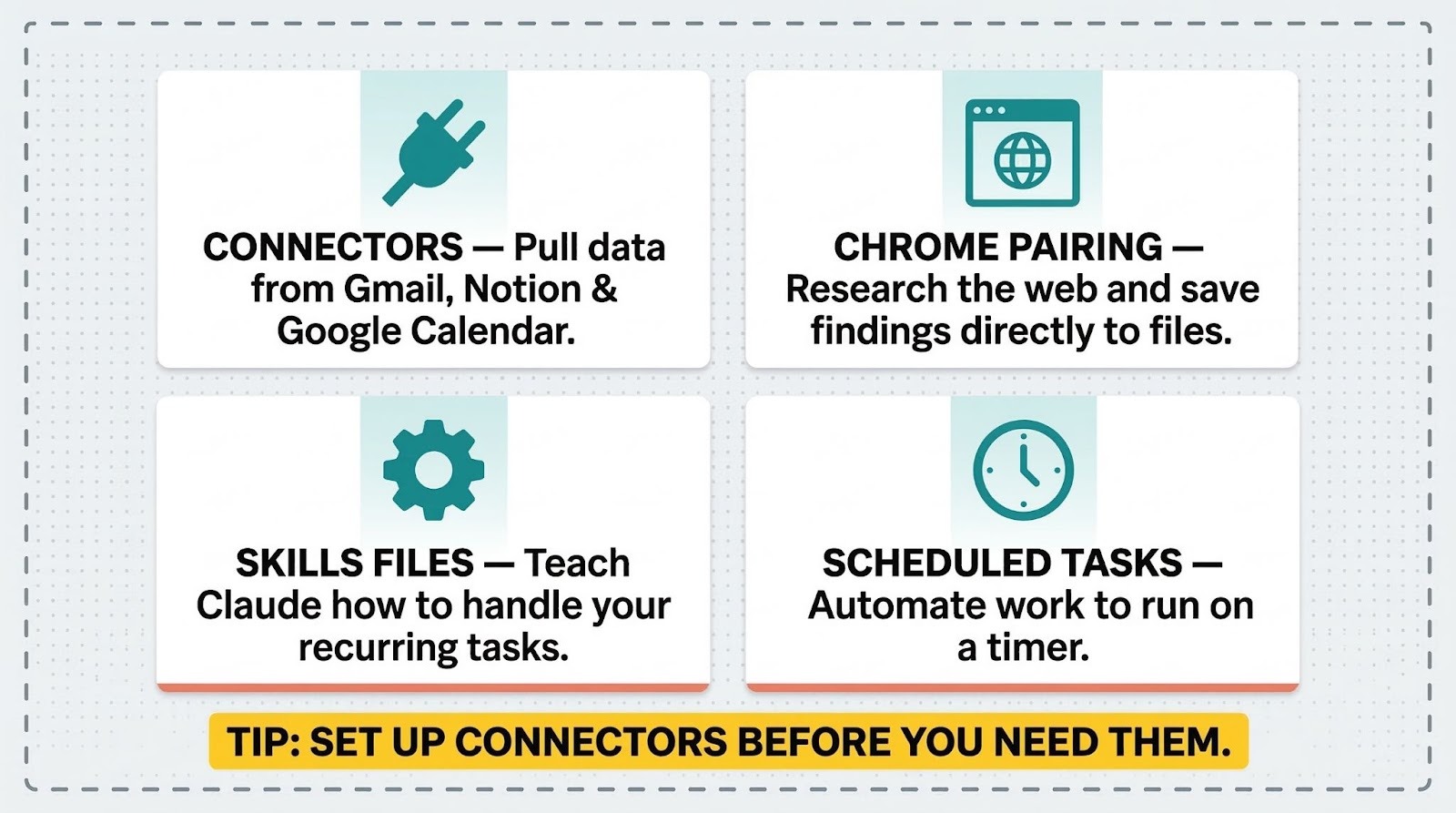
Cowork doesn’t just work with local files. Through connectors, Claude can pull data from the tools you’re already using, including Gmail, Google Drive, Notion, Slack, Google Calendar, and dozens more.
This is where Cowork goes from “nice file organizer” to “actual business assistant.”
Check my Google Calendar for meetings this week, then draft a
one-page prep doc for each meeting. Pull any relevant context
from my Gmail threads with those same contacts. Save each prep
doc in ~/Cowork/meeting-prep/ with the format YYYY-MM-DD-meeting-name.docx.
Pro tip: Set up your most-used connectors before you need them. Browse available connectors in the Cowork Customize menu. You authenticate once and they stay active across sessions.
Related: If you’re getting inconsistent results from Claude across different tasks, our full Claude Cowork guide covers the setup process in detail.
8. Pair Cowork With Claude in Chrome for Web Research Tasks
Here’s a cowork trick most people don’t know about. If you’ve got Claude in Chrome installed, Cowork can use your browser to research topics online and bring that information directly into your local files.
This means you can give Claude tasks like:
Research the top 5 project management tools for small teams in 2026.
Compare pricing, key features, and user reviews. Create a comparison
spreadsheet in ~/Cowork/research/ with a tab for each tool and a
summary tab with my recommendation.
Claude handles the browsing, the research, and the file creation in one task. You come back to a finished deliverable.
Pro tip: Claude in Chrome works best for research and data gathering. Don’t ask it to interact with complex web apps or fill out forms.
9. Build Skills Files for Tasks You Repeat Weekly
If you do the same type of task every week, like writing a status report, processing invoices, or creating social media posts, you’re wasting time re-explaining the task each session.
Skills are instruction files that teach Claude how to handle specific types of work. Cowork comes with some built-in skills for document creation and data processing, and you can install more through the plugin system or build your own. It’s easier than you’d think.
Filename: weekly-report-skill.md
# Weekly Status Report Skill
## Task
Generate a weekly status report from files in the current folder.
## Steps
1. Read all files modified in the last 7 days
2. Categorize updates by project
3. Summarize key accomplishments and blockers
4. Format as a .docx using the template in /templates/weekly-report.docx
5. Save with filename format: weekly-report-YYYY-MM-DD.docx
## Formatting rules
– Executive summary first (3-4 bullet points)
– No section longer than one page
– Use plain English, no jargon
Pro tip: Start simple. One skill file for your most repetitive task. Add more as you learn what works.
10. Use Scheduled Tasks to Automate Recurring Work
This is the feature that turns Cowork from a tool into a system.
Type /schedule in any Cowork task to create a scheduled task that runs automatically on a schedule you choose, daily, weekly, or whatever makes sense. Claude’ll run the task at the scheduled time as long as your computer’s awake and the Desktop app is open.
Think about what you do every Monday morning or every Friday afternoon. Chances are, Claude could handle a good chunk of it.
/schedule
Task: Every Monday at 8am, scan ~/Cowork/invoices/ for any new PDF files.
Extract the vendor name, amount, and date from each invoice. Add a new row
to ~/Cowork/financial/invoice-tracker.xlsx for each one. Move processed
invoices to ~/Cowork/invoices/processed/.
Pro tip: Scheduled tasks only run when your computer’s awake and the Claude Desktop app is open. If your laptop’s closed on Monday morning, the task won’t run until you open it.
11. Break Monster Tasks Into Smaller Prompts
Claude’s agentic architecture can handle complex, multi-step work. But there’s a sweet spot between “too simple” and “too ambitious.”
If you ask Claude to “reorganize my entire business operations, create a new filing system, draft 12 reports, and build a dashboard,” you’re going to get mediocre results across the board. It’ll try to do everything and do nothing particularly well.
Better approach:
Task 1: “Audit the files in ~/Cowork/projects/ and suggest a cleaner
folder structure. Don’t move anything yet, just give me the plan.”
Task 2: “Implement the folder structure from your last suggestion.
Move files to their new locations.”
Task 3: “Now create a summary report for each project folder.”
Each task builds on the last. Claude gets focused context for each one. Your results don’t get diluted.
Pro tip: If you’re not sure whether a task is too big, it probably is. Split it.
12. Ask for Specific File Formats (Don’t Let Claude Guess)
Claude defaults to creating markdown (.md) files when you don’t specify a format. That’s fine for notes, but it’s useless when you need a spreadsheet you can share with your accountant or a presentation for a client meeting.
Always specify the output format:
Create a budget breakdown as an Excel spreadsheet (.xlsx) with
separate tabs for Q1-Q4 and a summary tab with totals and charts.
Cowork can produce .docx, .xlsx, .pptx, .pdf, .csv, and more. It’s also got built-in skills that improve the quality of these outputs, including proper formatting, working formulas in spreadsheets, and styled presentations.
Pro tip: If you need a file you can edit in Google Sheets later, ask for .xlsx rather than .csv. You’ll keep formatting and formulas intact.
13. Add a “Do Not Delete” Safety File to Every Folder
Cowork can create, modify, and delete files in your folders. That’s powerful, but it also means a poorly worded prompt could result in Claude cleaning up files you didn’t want touched.
Anthropic built in a safety feature: Claude won’t permanently delete any files without asking your permission first. But you can add an extra layer of protection:
Filename: DO-NOT-DELETE.md
# Protected Files
The following files in this folder should never be deleted or modified
unless I explicitly say to:
– client-contract-2026.pdf
– master-template.docx
– brand-guidelines.pdf
If you need to create new versions, save them with a new filename
(e.g., client-contract-2026-v2.pdf).
Pro tip: This works because Claude reads all files in your folder for context. It’ll see your DO-NOT-DELETE list and respect it.
14. Prevent Sleep Mode During Long-Running Tasks
Cowork tasks can run for extended periods, especially complex ones involving multiple sub-agents working in parallel. But here’s the catch: if your computer goes to sleep, the session’s dead.
On Mac, go to System Settings > Energy and adjust your sleep timer, or use a utility like caffeinate in Terminal:
caffeinate -d -i -s &
On Windows, go to Settings > System > Power & battery and set your screen and sleep timers to “Never” while running long tasks.
Pro tip: You don’t need to watch Claude work. Let it run in the background while you handle other things. Just make sure your machine stays awake.
15. Keep Your Desktop App Open (Sessions Die When You Close It)
This sounds obvious, but it trips people up constantly.
Cowork sessions are tied to the Claude Desktop app. If you close the app, your session ends immediately. There’s no “resume from where I left off.” The work Claude already completed and saved to your files is safe, but any in-progress task stops dead.
This also means you can’t start a Cowork task on your laptop, close it, and pick up on your phone. Cowork’s desktop-only and doesn’t sync across devices yet.
Pro tip: Minimize the app instead of closing it. And if you’re running a long task, double-check that your battery isn’t about to die.
Common Cowork Mistakes (And How to Avoid Them)
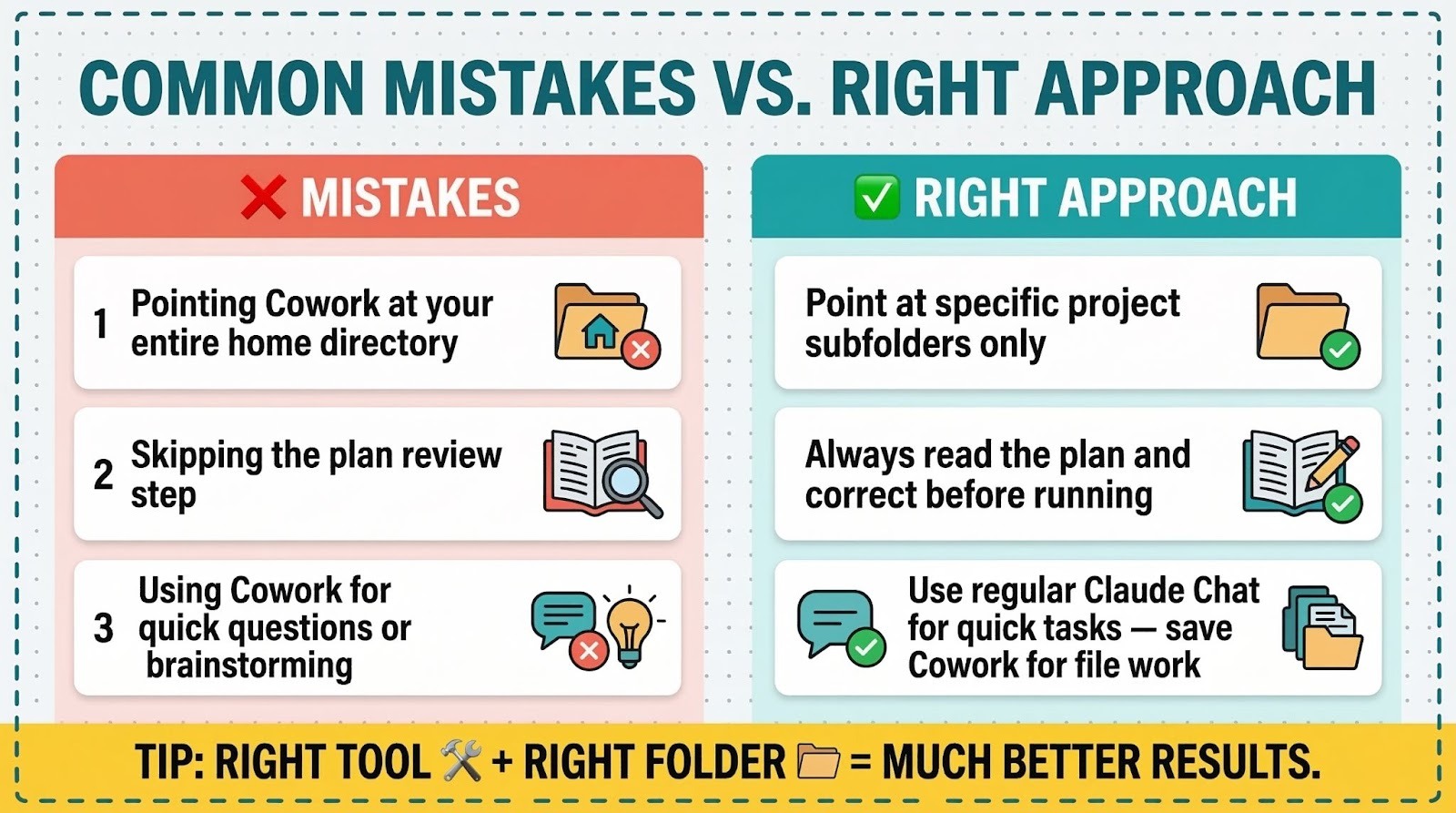
Using Cowork When Chat Would Be Faster
Cowork consumes more of your usage allocation than regular Claude chat. That’s because complex, multi-step tasks require more processing power.
If you just need a quick answer, a brainstorm, or a short piece of writing that doesn’t need to touch your files, use regular Chat instead. Save Cowork for tasks that actually benefit from file access and extended execution.
Here’s a good rule of thumb: if the task involves creating, reading, or organizing files on your computer, use Cowork. If it’s a conversation, use Chat.
For more on avoiding common Claude mistakes that waste your usage limits, we’ve got a separate guide for that.
Giving Access to Your Entire Home Directory
You can technically point Cowork at your entire home folder. Please don’t.
Claude reads files to build context. The more files it reads, the more noise it’s got to filter through, and the more of your usage allocation it burns. Worse, you’re giving Claude access to sensitive files it doesn’t need.
Stick to project-specific folders. Grant the minimum access needed for the current task.
Skipping the Plan Review Step
I’ve said it once, but it’s worth repeating here because it’s the most common mistake I see.
When Claude shows you its plan, actually read it. Five seconds of review prevents five minutes of cleanup. If the plan looks wrong, tell Claude what to change before it starts executing. This is especially important for tasks involving file deletion or modification.
Claude Cowork vs Claude Chat vs Claude Code
Picking the right Claude tool for the job saves you time and usage credits. Here’s how they stack up:
Feature
Claude Chat
Claude Cowork
Claude Code
Best for
Quick questions, brainstorming, writing
File-based tasks, document creation, automation
Software development, coding projects
Interface
Web, mobile, desktop
Desktop app only (Mac/Windows)
Terminal (command line)
File access
Upload/download only
Direct local file access
Full filesystem access
Output type
Text in conversation
Files saved to your computer
Code files, commits, PRs
Subscription needed
Free (limited) or any paid plan
Pro, Max, Team, or Enterprise
Pro, Max, Team, or Enterprise
If you’re not a developer, Cowork is almost certainly the right tool for you. It gives you the same agentic power that developers get from Claude Code, wrapped in an interface that doesn’t require opening a terminal.
Frequently Asked Questions
When should I use Cowork instead of regular Claude?
Use Cowork when your task involves working with files on your computer. Creating documents, organizing folders, processing data from spreadsheets, generating presentations. Anything that needs to read from or write to your local files. For quick questions, brainstorming, or conversations that don’t need file access, regular Claude Chat is faster and won’t eat through your allocation as quickly.
Does Claude Cowork work on Windows?
Yes. Cowork’s available on Claude Desktop for both macOS and Windows (x64). Windows ARM64 isn’t supported yet. You’ll need the latest version of Claude Desktop installed to access Cowork.
What Claude subscription do I need for Cowork?
Cowork’s available on all paid Claude plans: Pro, Max, Team, and Enterprise. It’s not available on the free plan. Keep in mind that Cowork tasks consume more usage than regular chat, so you’ll want to monitor your allocation in Settings > Usage.
Can Cowork access the internet?
Yes, but with conditions. Cowork respects your network egress permissions, which you can configure in your Claude settings. If you’ve installed Claude in Chrome, Cowork can also use your browser for web research tasks. The built-in web search tool works regardless of your egress settings.
Does Cowork remember my preferences between sessions?
Not exactly. Cowork doesn’t carry memory from one session to the next. But you can get the same effect by using global instructions (which persist across all sessions) and folder-specific instruction files (which persist for that project). Think of these as Cowork’s long-term memory. Everything you put in those instruction files is available to Claude every time you start a new task.
Want more Claude workflows like these? The Claude Mastery Guide is our complete system for getting serious results from Claude, Cowork, and Projects. It’s built for business owners who want to stop experimenting and start producing.
Which of these tips are you trying first? We update this list as Cowork evolves, so bookmark it and check back.