Your proposal took four hours last Tuesday. Sourcing stats, writing drafts, formatting the deck. Four hours for a document your client skimmed in ten minutes.
With Claude, that same proposal takes about 25 minutes. Not because the AI writes something “good enough.” Because you feed Claude your past proposals, your pricing structure, and your client’s brief, and it produces a draft that sounds like you wrote it on your best day.
That’s the difference between using AI as a toy and using it as a business tool.
This guide covers everything you need to turn Claude into your team’s most productive colleague.
You’ll learn which plan fits your business, how real companies use Claude across seven core functions, and how to set it up so every team member gets value from day one.
No prompt engineering degree required.
ALSO READ: 15 NotebookLM Prompts That Actually Work (Copy, Paste, Done)
What Is Claude for Business?
Claude for Business refers to Anthropic’s suite of team and enterprise AI solutions built around the Claude AI assistant.
Through Team ($20-$25/seat/month) and Enterprise (custom pricing) plans, businesses get shared workspaces, admin controls, enterprise-grade security, and collaborative AI tools that connect to existing workflows through Google Workspace, Slack, and 50+ other integrations.
Here’s what that actually means in practice. Instead of each employee chatting with Claude in their own silo, your whole marketing team shares a Project loaded with your brand guidelines, tone of voice docs, and campaign briefs.
Your sales team has a separate Project with objection-handling scripts, pricing sheets, and competitor intel. Every time someone on the team talks to Claude, it already knows the context.
That shared context is what separates “playing with AI” from “running a business on AI.”
Anthropic, the company behind Claude, grew out of former OpenAI researchers with a specific focus on AI safety.
Your business data isn’t used to train their models on Team and Enterprise plans, which is why companies like GitLab, Midjourney, Deloitte, and PwC trust Claude with sensitive work.
Claude Business Plans Compared: Free vs Pro vs Team vs Enterprise
Choosing the right plan is simpler than you’d think. It comes down to team size and how deeply you want Claude embedded in your workflows.
Which Plan Fits Your Business Size?
Plan
Price
Best For
Key Features
Free
$0
Testing Claude personally
Basic chat, web search, connectors, limited daily usage
Pro
$20/mo ($17/mo annual)
Solopreneurs, freelancers
5x Free usage, Cowork, Claude Code, Projects, memory, extended thinking
Team Standard
$25/seat/mo ($20 annual)
Small teams (5-75 people)
Shared Projects, admin controls, SSO, enterprise search, connectors
Team Premium
$125/seat/mo ($100 annual)
Power-user teams
5x Standard usage, Claude Code access
Enterprise
Custom pricing
Large organizations (75+)
Enhanced context window, SCIM, audit logs, compliance API, custom retention
If you’re a one-person operation, Pro at $20/month is the sweet spot. You get access to all Claude models (including the flagship Opus 4.6), unlimited Projects to organize your work, and Cowork for desktop automation.
Once you have five or more people who need Claude, the Team plan becomes the obvious choice. You’re paying $20-$25 per seat, but the shared workspace, admin controls, and enterprise search across your organization are worth the switch from individual accounts.
What You Get with Claude Team and Enterprise
The Team plan’s real power is collaboration. Here’s what it includes beyond Pro:
Shared Projects let your team build a collective knowledge base. Upload your SOPs, brand documents, and templates once, and every team member gets Claude responses grounded in your actual business context.
Admin controls give you oversight. Manage which connectors your team can use, control remote and local MCP connections, and handle billing from one dashboard.
Enterprise search means Claude can search across your organization’s chats and documents to find relevant context, pulling from existing knowledge without anyone needing to re-explain.
SSO and domain capture make onboarding painless. New employees at your domain automatically route to your organization’s Claude workspace.
Connectors are where things get powerful. Claude connects directly to Microsoft 365, Slack, Google Workspace (Drive, Calendar, Gmail), and dozens more tools. Your team doesn’t copy-paste between apps. Claude reads and acts on your actual work data.
Enterprise builds on all of that with enhanced context windows (process longer documents), SCIM user provisioning, audit logs for compliance, a compliance API, custom data retention policies, IP allowlisting, and even a HIPAA-ready offering for healthcare organizations.
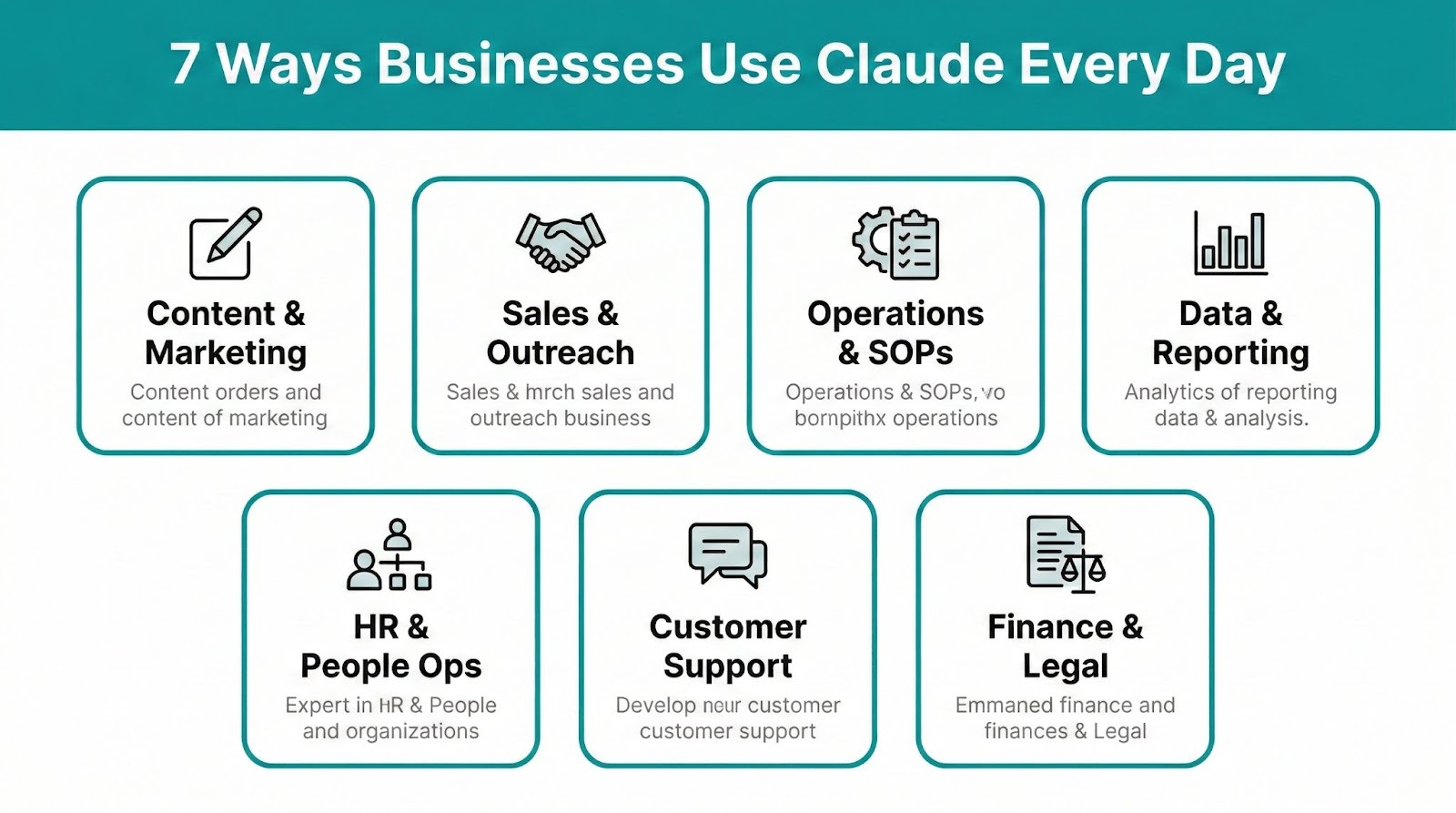
7 Ways Businesses Use Claude Every Day
These aren’t hypothetical use cases. They’re the workflows that companies like GitLab and North Highland are running right now. Each one includes a prompt you can copy and start using today.
1. Content and Marketing
Claude’s an exceptional writer. North Highland’s team reported completing content creation and analysis tasks up to 5x faster, turning what used to take two weeks of writing and research into minutes of work.
Blog posts, email campaigns, social media calendars, SEO briefs, ad copy variations. Claude handles all of it. But the real advantage comes when you load a Project with your brand voice guide and past content. Claude doesn’t just write well. It writes like your brand.
Copy-paste prompt:
You’re my company’s content strategist. Here’s our brand voice: [paste brand voice doc or describe tone].
Write a 600-word blog post about [TOPIC] targeting [AUDIENCE].
Use our voice. Include a compelling hook, 3 practical takeaways,
and a CTA pointing to [PRODUCT/OFFER].
Keep paragraphs under 4 sentences.
Pro tip: Create a dedicated Marketing Project with your brand style guide, top-performing content examples, and competitor positioning. Every prompt in that Project will reflect your brand automatically.
Want more prompts like this? Check out our best Claude prompts for business collection with 50+ templates you can copy and paste today.
2. Sales and Client Communication
Proposals, follow-up sequences, cold outreach, call transcript analysis. Claude turns your best sales rep’s approach into a repeatable system.
GitLab‘s sales team uses Claude to quickly generate and customize responses to RFPs, saving significant time on what used to be repetitive, manual work.
Copy-paste prompt:
I just had a sales call with [CLIENT NAME] in the [INDUSTRY] space.
Here are my notes: [PASTE NOTES]
Draft a follow-up email that:
1. References a specific point they raised
2. Addresses their main concern about [OBJECTION]
3. Proposes a concrete next step with a specific date
4. Keeps the tone warm but professional
Also flag any buying signals I might have missed in my notes.
3. Operations and SOPs
Every growing business hits the same wall. The processes in your head need to get on paper, but documentation always falls to the bottom of the to-do list.
Claude turns rough notes and verbal descriptions into clean SOPs, process documentation, vendor evaluation frameworks, and operational runbooks. With the new Cowork feature, Claude can even organize scattered files on your desktop into properly structured folders.
Feed it your current (messy) documentation, and it will produce standardized versions that your team can actually follow.
4. Data Analysis and Reporting
Upload a CSV and ask Claude to find the story in your data. It handles trend identification, anomaly detection, and executive summary generation.
Claude can build working spreadsheets with formulas, create data visualizations through Artifacts, and produce formatted reports. It won’t replace a dedicated data analyst for complex modeling, but for weekly reports, quarterly reviews, and ad-hoc analysis, it saves hours.
Try this: Upload your last quarter’s sales data and ask, “What are the three most important trends my CEO needs to know about? Create a one-page executive summary with supporting data.”
5. HR and People Operations
Job descriptions, onboarding materials, performance review prep, compensation analysis. Claude handles the administrative weight of HR so your people team can focus on, well, people.
Anthropic’s own February 2026 plugin update included a dedicated HR plugin built with practitioners, supporting the full employee lifecycle from drafting offer letters to running compensation analyses.
Load your existing job description templates and company values into a Project. Claude will generate role-specific postings that match your culture and comply with your formatting standards.
6. Customer Support
Response templates, FAQ generation, tone-matched replies across channels. Claude helps your support team respond faster without sounding robotic.
The key is consistency. Upload your support playbook and brand voice guidelines, and Claude produces responses that match your company’s tone whether it’s handling a billing question or a product complaint.
For teams using Slack, Claude integrates directly into your workspace. A support agent can mention @Claude in a thread to draft a response based on the conversation context, then review and send.
7. Finance and Legal
Contract review, expense analysis, financial modeling, compliance checks. Claude’s strong here, but a word of caution: always have a qualified professional review financial and legal outputs. Claude assists with the heavy lifting. Humans make the final decisions.
That said, Claude’s ability to process long documents is a major advantage. Upload a 50-page contract and ask it to flag non-standard terms, summarize key obligations, or compare it against your standard agreement template.
Anthropic’s February 2026 update introduced specialized finance plugins for financial analysis, investment banking, equity research, private equity, and wealth management workflows.
PwC partnered with Anthropic specifically to help enterprises deploy these capabilities within compliant governance frameworks.
Claude’s Business Features You Should Actually Use
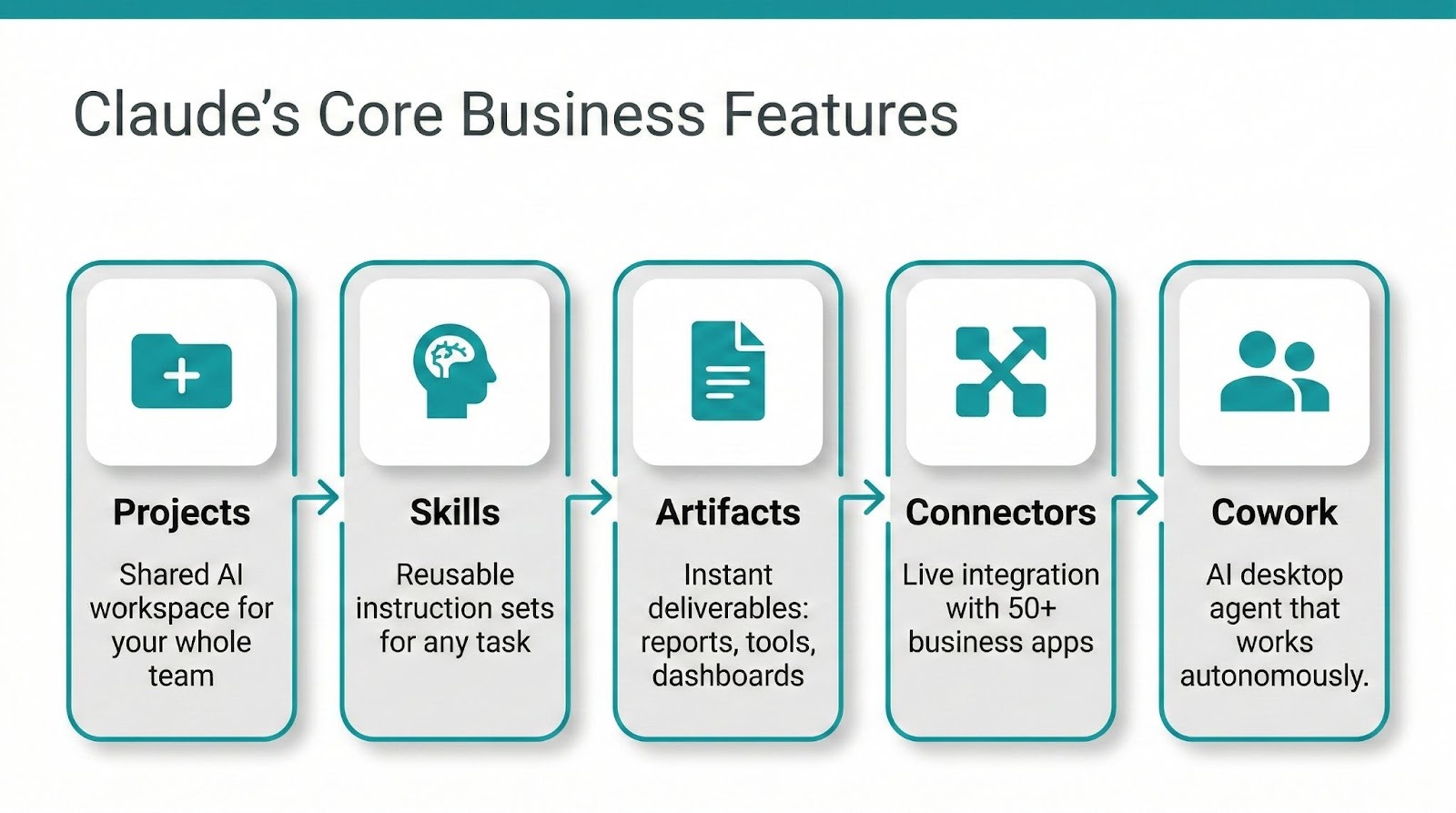
Claude has a lot of features. These are the five that matter most for business users.
Projects (Your Team’s Shared Brain)
Projects are folders for your Claude conversations. But they’re more than that. Each Project can include custom instructions and reference documents that Claude uses as context for every conversation inside it.
Think of a Project as giving Claude a briefing before every meeting. Your marketing Project might include your brand style guide, competitor analysis, and current campaign objectives.
Every time someone on your team starts a new conversation in that Project, Claude already knows the context.
How to set one up:
- Click “Projects” in the sidebar
- Name it (e.g., “Q2 Marketing Campaign”)
- Add custom instructions (what Claude should know and how it should respond)
- Upload reference documents (PDFs, docs, data files)
- Invite team members (Team/Enterprise plans)
On Team and Enterprise plans, Projects become collaborative. Your whole department shares the same context, and the enterprise search feature means Claude can pull relevant information from across your organization’s Projects.
Read our Claude Skills setup guide for advanced Project configuration tips.
Skills (Custom Instructions on Autopilot)
Skills are reusable instruction sets that tell Claude exactly how to handle specific tasks. If Projects are the context, Skills are the playbook.
A Skill might be “Write a product description” with specific instructions about your format, tone, required sections, and SEO requirements. Once built, anyone on your team can activate that Skill and get consistent, on-brand output without writing a single prompt from scratch.
Building a Skill is straightforward. Go to your Project settings, create a new Skill, and define the instructions Claude should follow. Include example inputs and outputs if you want extra precision.
The result? Your newest hire produces Claude-assisted work that matches the quality of your most experienced team member.
Artifacts (Instant Deliverables)
Artifacts are Claude’s output format for anything more complex than plain text. Think working React apps, formatted reports, interactive dashboards, SVG graphics, and presentation outlines.
For business users, Artifacts mean you can ask Claude to “build me an ROI calculator for our consulting services” and get a working, interactive tool you can share with clients. Or ask for a project timeline visualization and get something you can present in your next meeting.
Artifacts render directly in the Claude interface. No downloading files, no switching apps. Review it, iterate on it, and export it when it’s ready.
Connectors and Integrations
This is where Claude stops being a chatbot and starts being a colleague.
As of February 2026, Claude’s Connectors Directory features over 50 integrations. The major ones for business:
- Google Workspace (Drive, Calendar, Gmail): Claude reads your docs, checks your calendar, and references emails without copy-pasting
- Slack: Two-way integration. Use Claude inside Slack, or have Claude search your Slack workspace for context
- Microsoft 365: Connect your Microsoft tools to Claude
- Asana, Jira, Linear, Monday.com: Project management integrations
- Notion: Read and write to your wiki
- GitHub: Code repository access for technical teams
- Figma and Canva: Design tool integrations
- DocuSign, Stripe: Business operations connectors
Your plan includes connectors at no extra charge. Paid plan users can also add custom connectors via MCP (Model Context Protocol) server URLs for specialized tools.
For advanced use cases, check out our guide to AI prompts for small business owners that shows how to combine connectors with targeted prompts.
Cowork (Your AI Colleague)
Cowork launched as a research preview in January 2026 and expanded to all paid plans on both macOS and Windows.
This isn’t like chatting with Claude. In Cowork, you give Claude access to a folder on your computer, describe a task, and Claude executes it independently. Multi-step, file-level work that would take you an hour, Claude handles while you focus on something else.
Real examples:
- “Organize my Downloads folder by type and date” and Claude sorts hundreds of files
- “Turn these receipt photos into a formatted expense report”
- “Read these scattered research notes and produce a structured first draft”
Cowork also supports plugins, which bundle skills, connectors, and commands into packages for specific job functions. Anthropic launched department-specific plugins for HR, design, engineering, operations, and multiple finance roles in February 2026.
Important note: Cowork consumes more usage than standard chat because multi-step tasks require more processing. If you’re on the Pro plan, you might hit usage limits faster when using Cowork heavily. Max and Team Premium plans provide significantly more headroom.
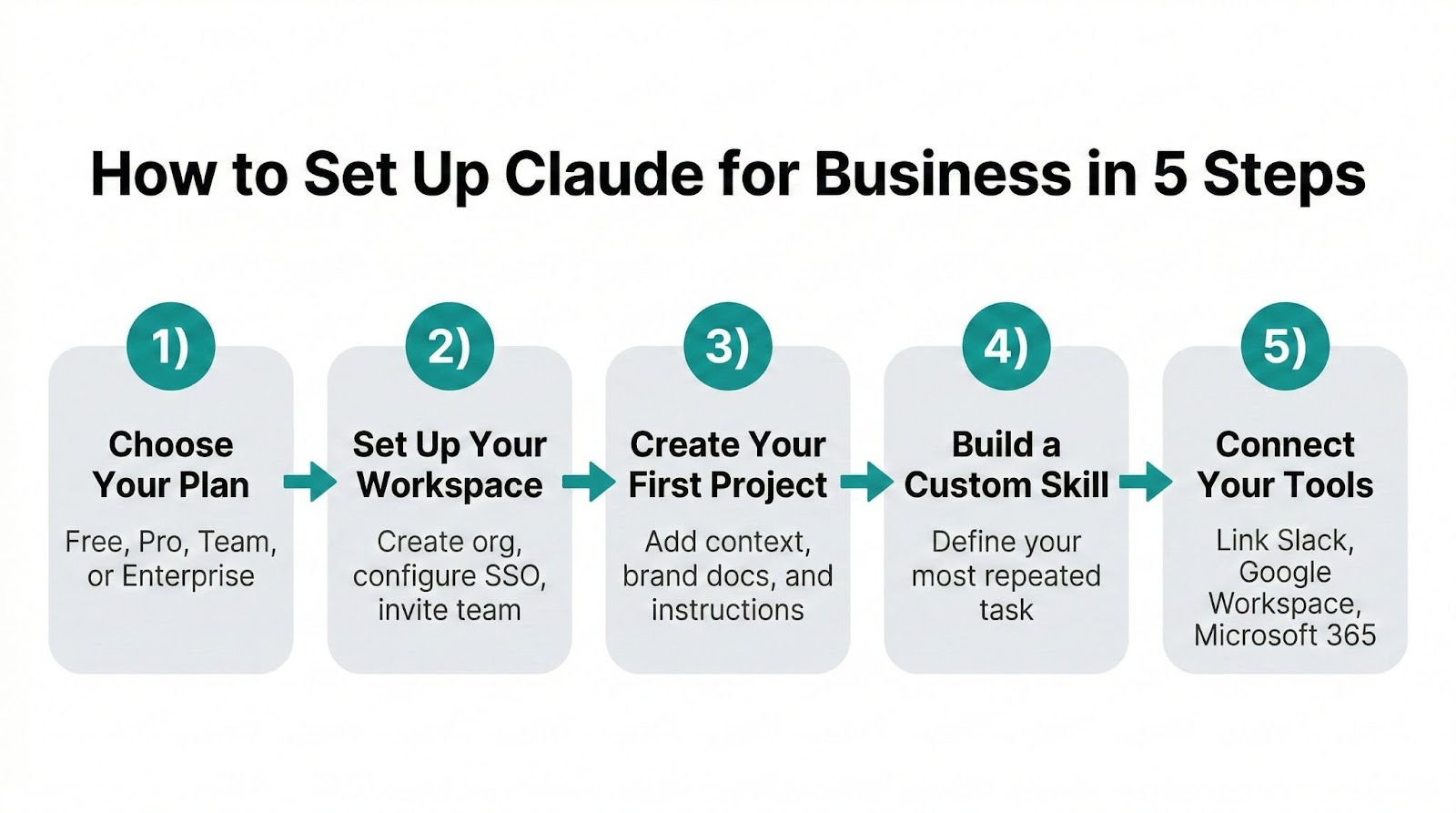
How to Set Up Claude for Your Business (Step by Step)
You can go from zero to a fully configured Claude workspace in under an hour. Here’s the path.
Step 1: Choose the Right Plan
Start here:
- Just you? Get Pro ($20/month). You get everything including Cowork.
- 5+ team members? Get Team Standard ($20-$25/seat/month). The admin controls and shared Projects are essential.
- Heavy Claude usage across the team? Team Premium ($100-$125/seat/month) adds 5x the usage of Standard and Claude Code access.
- 75+ people or regulated industry? Talk to Anthropic’s sales team about Enterprise.
Step 2: Set Up Your Team Workspace
After choosing Team or Enterprise:
- Create your organization in Claude
- Configure SSO if you want automatic authentication (Enterprise includes advanced SSO, Team includes basic SSO and domain capture)
- Invite team members via email or domain capture
- Set admin controls for connectors and permissions
Your admin dashboard lets you manage billing, monitor usage, and control which integrations your team can access.
Step 3: Create Your First Project
Pick your highest-impact team first. Marketing and sales are usually the quickest wins.
- Create a new Project (e.g., “Marketing HQ”)
- Write custom instructions: Tell Claude your company name, what you do, your target audience, preferred tone, and any formatting standards
- Upload 3-5 key reference documents: brand guide, buyer personas, product specs, top-performing content samples
- Start a conversation and test it. Ask Claude to write something using only the Project context
You’ll know it’s working when Claude’s output sounds like someone who’s worked at your company for months wrote it.
Step 4: Build a Custom Skill for Your Most Repetitive Task
What task does your team do over and over? Weekly reports? Client onboarding emails? Social media posts? Build a Skill for it.
- Inside your Project, go to Skills
- Name it clearly (e.g., “Weekly Performance Report”)
- Write the instructions: what Claude should produce, what format, what data it needs, what tone
- Add example outputs if possible
- Test it and refine
Once it’s working, share it with your team. They activate the Skill, provide the variable inputs (this week’s data, this client’s name), and Claude produces consistent, high-quality output every time.
Step 5: Connect Your Tools
Head to Settings > Connectors and connect the tools your team lives in:
- Start with Google Workspace or Microsoft 365. These give Claude the broadest context about your business.
- Add Slack if your team communicates there. The two-way integration means Claude can search your Slack history for context.
- Connect your project management tool (Asana, Jira, Monday.com, Linear) for workflow awareness.
- Add specialized tools based on your needs: Notion for docs, GitHub for code, Figma for design.
Each connector uses OAuth for secure authentication. The tool’s login page opens, you approve Claude’s access, and you’re connected. Takes about 30 seconds per tool.
Claude vs ChatGPT for Business: Quick Comparison
Both are excellent. The right choice depends on your specific needs.
Feature
Claude (Team)
ChatGPT (Team)
Pricing
$20-$25/seat/month
$25-$30/seat/month
Context Window
200K tokens (standard)
128K tokens
Writing Quality
Exceptionally strong, nuanced tone
Strong, more general
Code Generation
Claude Code (terminal + web)
Code Interpreter
Desktop Agent
Cowork (Mac + Windows)
Operator (limited)
Integrations
50+ connectors, MCP support
GPTs, plugins, limited connectors
Image Generation
No native generation
DALL-E integrated
Data Privacy
No training on business data (Team/Enterprise)
No training on business data (Team/Enterprise)
Claude tends to excel at long-form writing, nuanced communication, complex document analysis, and following detailed instructions. ChatGPT has the edge in image generation and offers a larger library of third-party plugins.
For a detailed head-to-head breakdown, read our full Claude vs ChatGPT comparison.
Common Mistakes Businesses Make with Claude (and How to Avoid Them)
Mistake 1: Giving vague prompts. “Write me a marketing email” produces generic output.
“Write a 150-word follow-up email to a SaaS CMO who attended our webinar on customer retention, mention the 23% churn reduction stat from slide 8, and offer a 15-minute strategy call” produces something you can actually send. Specificity is the single biggest lever you have.
Mistake 2: Not using Projects. Every conversation starts from zero if you don’t set up Projects. Your team wastes time re-explaining your business, your audience, and your standards in every chat. One hour of Project setup saves hundreds of hours downstream.
Mistake 3: Treating Claude like a search engine. Claude’s strength is synthesis and creation, not fact retrieval. Don’t ask “what’s the market size of X?” without giving it data to work with. Do ask “here’s our market research report, summarize the three biggest opportunities for our product category and draft a one-page brief for our board.”
Mistake 4: Skipping Skills. If three people on your team write client proposals, and each one prompts Claude differently, you get three different quality levels. Skills standardize the input so the output stays consistent. Build them for your top five recurring tasks.
Mistake 5: Ignoring connectors. Claude without connectors is like hiring an assistant and locking them in a room with no computer. Connect your tools. Let Claude see your actual data, documents, and communications. That’s where the real productivity gains live.
FAQ
Is Claude safe for business data?
Yes. On Team and Enterprise plans, Anthropic does not train on your conversations or uploaded data. Enterprise adds audit logs, SCIM provisioning, compliance APIs, custom data retention, and a HIPAA-ready option for healthcare.
Claude also runs Cowork in an isolated virtual machine on your computer, so files stay local.
How much does Claude cost for a team of 10?
On Team Standard with annual billing: $200/month ($20/seat x 10). Monthly billing runs $250/month ($25/seat x 10). If some team members need heavier usage and Claude Code access, Premium seats cost $100/seat/month annually.
Can Claude replace my writer/analyst/assistant?
Claude’s best understood as a force multiplier, not a replacement. It makes your existing team dramatically more productive. A marketing team of three with Claude can produce the output of a team of six. But it still needs human judgment, review, and direction.
Think of it as your most capable junior employee who never sleeps but always needs someone to check their work.
What’s the difference between Claude Team and Enterprise?
Team supports 5-75 seats with shared Projects, admin controls, SSO, and standard connectors. Enterprise adds enhanced context windows, SCIM user provisioning, audit logs, compliance APIs, custom data retention policies, IP allowlisting, and Google Docs cataloging.
If you’re in a regulated industry or need granular access controls, Enterprise is the path.
Does Claude work with Google Workspace and Slack?
Yes to both. Google Workspace (Drive, Calendar, Gmail) and Slack are fully supported connectors. The Slack integration is two-way: add Claude directly to your Slack workspace and use it in channels, or connect Slack to Claude so it can search your workspace for context.
Both are included with paid plans at no extra cost.
Ready to put Claude to work for your business? Our Claude Skills Bundle gives you pre-built workflows for marketing, sales, operations, and more. Grab the bundle and skip the setup.
Which Claude business feature are you trying first? Drop a comment. We read every one.