Claude Cowork: The Complete Guide (Setup, Features, Use Cases & Everything You Need in 2026)
Complete Claude Cowork guide for 2026: what it is, how it works, setup instructions, real use cases, safety tips, pricing breakdown. Master Anthropic’s AI agent for non-developers.


On this page
- What Is Claude Cowork? (And Why Everyone’s Talking About It)
- The Story Behind Cowork (Why It Exists)
- Cowork vs Chat vs Claude Code: When to Use Each
- Use Chat When:
- Use Cowork When:
- Use Claude Code When:
- Requirements: Who Can Use Cowork?
- How to Set Up Cowork (Step-by-Step)
- Step 1: Install Claude Desktop
- Step 2: Access the Cowork Tab
- Step 3: Your First Cowork Task
- What Cowork Can Actually Do (Real Use Cases)
- Use Case 1: Process Receipt Screenshots to Expense Report
- Use Case 2: Research Synthesis from Multiple Sources
- Use Case 3: Blog Content Production Pipeline
- Use Case 4: Desktop Cleanup and Organization
- Use Case 5: Create Presentation from Notes
- How to Write Good Cowork Prompts
- The Formula
- Example: Bad vs Good
- Key Principles
- Safety: What You Need to Know (Without the Fearmongering)
- The Real Risks
- Safe Usage Checklist
- When to Hit the Emergency Stop
- Pricing and Usage Limits: What You Actually Get
- The Plans
- Is It Worth It?
- Common Mistakes (And How to Avoid Them)
- Mistake 1: Giving Cowork Access to Your Entire Computer
- Mistake 2: Vague Instructions
- Mistake 3: Not Reviewing the Plan
- Mistake 4: Using Cowork for Simple Tasks
- Mistake 5: No Backups
- Mistake 6: Closing the Desktop App
- Mistake 7: Assuming It Remembers
- Advanced Features: When You’re Ready
- MCP Connectors
- Skills
- Parallel Subagents
- Troubleshooting: When Things Go Wrong
- What’s Coming: The Future of Cowork
- Your Move: The 48-Hour Challenge
- The Real Shift
On January 12, 2026, Anthropic dropped something big.
Not another model update. Not another API feature. Something different.
Claude Cowork.
Within 24 hours, it was everywhere.
Tech Twitter exploded.
Reddit threads filled with experiments.
Product managers, researchers, writers—people who’d never touched Claude Code—were suddenly running autonomous AI agents on their computers.
Here’s what happened:
ALSO READ: How a Free Online Letterhead Creator Saves Time
What Is Claude Cowork? (And Why Everyone’s Talking About It)
Claude Cowork is an AI agent that runs on your Mac, with direct access to folders you choose, that can complete multi-step tasks autonomously.
You describe what you want done.
Claude makes a plan.
You approve it.
Claude executes it—for minutes or hours—while you do other things.
You come back to finished work.
What makes this different:
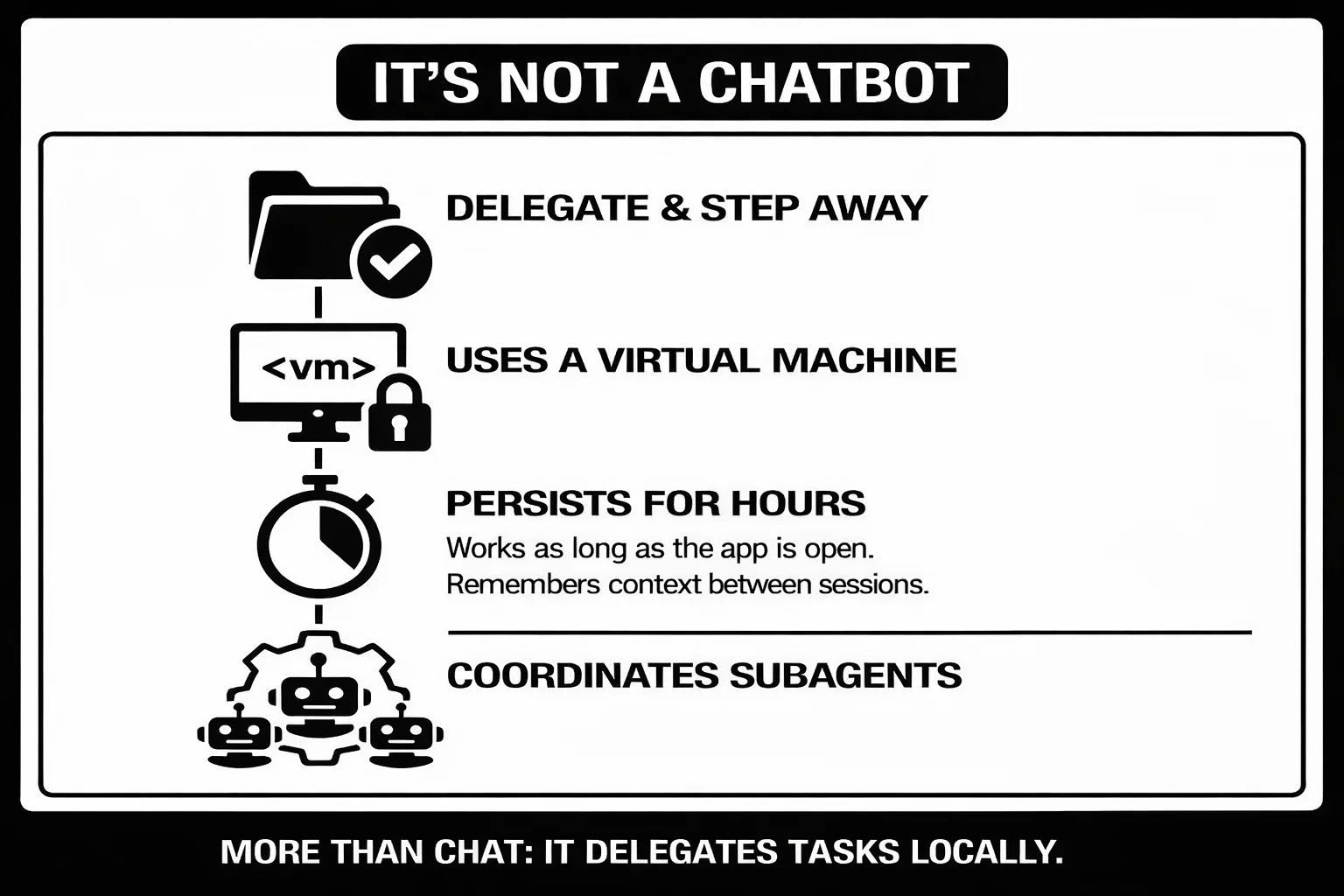
It’s not a chatbot. You don’t have a back-and-forth conversation. You delegate a task and step away.
It runs locally. Cowork operates on your computer, in folders you specify, with files that live on your machine.
It uses a virtual machine. Your files are mounted into an isolated Linux environment (Apple Virtualization Framework). Cowork can’t access anything you don’t explicitly share.
It can work for hours. Unlike chat conversations that timeout or lose context, Cowork sessions persist as long as your Desktop app is open.
It coordinates subagents. For complex tasks, Cowork spins up multiple instances of Claude working in parallel—each with fresh context.
Think of it like this: Chat is asking a colleague questions. Cowork is delegating a project and checking back when it’s done.
The Story Behind Cowork (Why It Exists)
When Anthropic launched Claude Code in February 2025, they expected developers to use it for coding.
They did.
But then something unexpected happened.
Developers started using Claude Code for everything else:
• Vacation planning
• Email cleanup
• Photo organization
• Subscription cancellations
• Knitting patterns
• Plant care schedules
Boris Cherny (Claude Code’s creator) noticed the pattern: “The underlying Claude Agent is the best agent, and Opus 4.5 is the best model.”
People were forcing a coding tool to do non-coding work because it was the most capable agent available.
But it required terminal comfort most people don’t have.
So Anthropic built Cowork. Same agent architecture. Same capabilities. Different interface.
Built in 10 days. By Claude Code itself. Released January 12, 2026 as a research preview.
The timing wasn’t random.
Early January saw the Windsurf/OpenCode controversy—Anthropic cutting off third-party tools.
Developers were angry.
But it revealed demand: people wanted this power through official Anthropic products.
Cowork is that product.
Cowork vs Chat vs Claude Code: When to Use Each
This confuses everyone at first. Here’s the simple framework:
Use Chat When:
- You need quick answers
- You’re brainstorming ideas
- You want a conversation
- You’re iterating on content
- Tasks take under 5 minutes
- No file access needed
Example: “Explain quantum computing simply” or “Help me draft an email”
Use Cowork When:
- You have a defined end state
- Tasks require 30+ minutes of work
- You need file access on your computer
- You want to delegate and step away
- Multiple subtasks can run in parallel
- You’re creating deliverables (spreadsheets, presentations, organized folders)
Example: “Organize my Downloads folder by type and date” or “Create expense spreadsheet from receipt screenshots”
Use Claude Code When:
- You’re comfortable with terminal
- You need custom slash commands
- You want maximum control
- You’re doing actual coding
- You need hooks and advanced features
- You want to automate workflows with scripts
Example: Running test suites, Git operations, debugging code
The Pattern: Chat for thinking, Cowork for doing, Claude Code for building.
Requirements: Who Can Use Cowork?
What You Need:
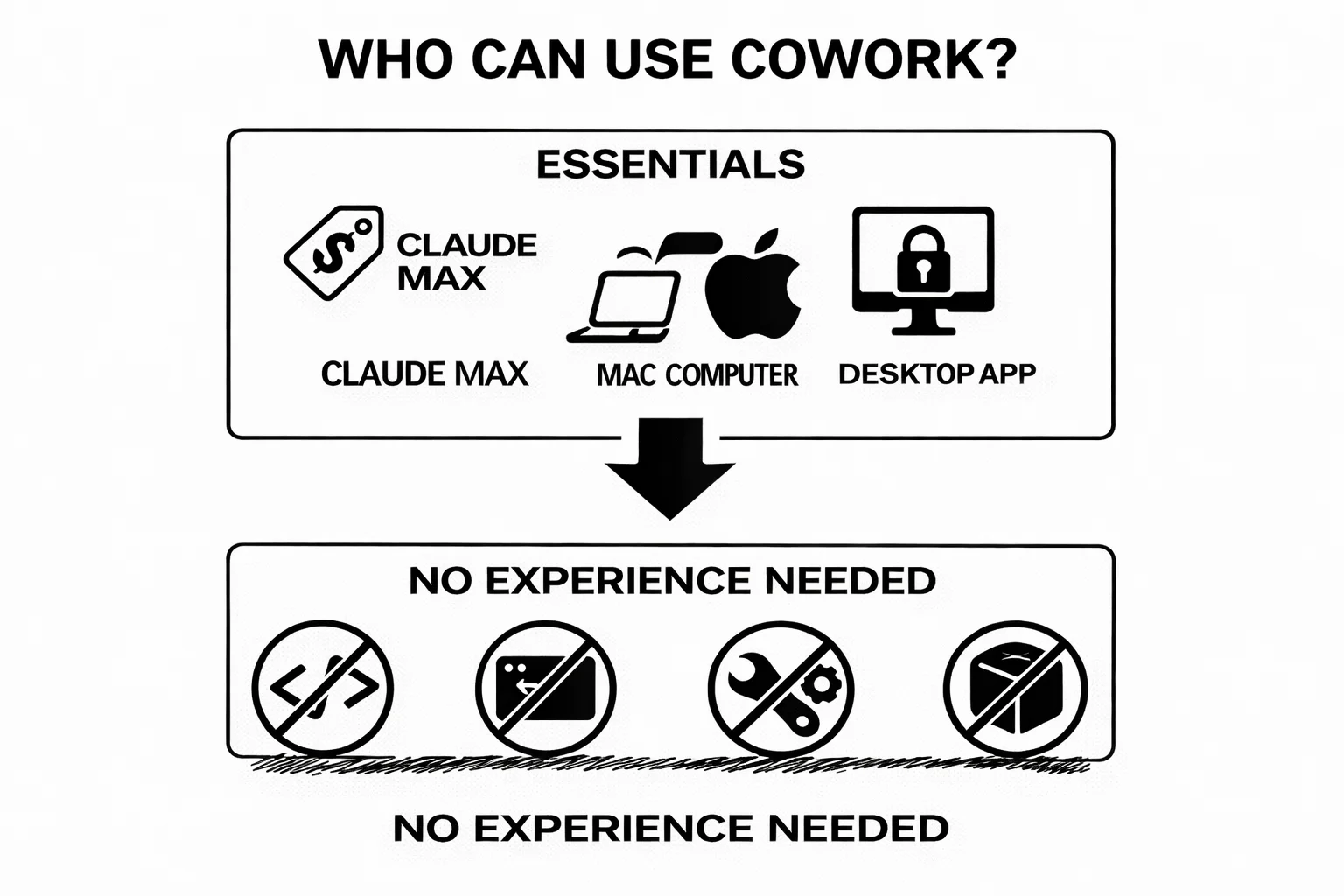
Claude Max subscription ($100/month or $200/month)
- Max 5x plan works fine for most people
- Max 20x if you hit usage limits frequently
Mac computer running macOS
- Works on Apple Silicon and Intel Macs
- Requires Claude Desktop app (not web or mobile)
- Windows support coming soon (no date yet)
Active internet connection
- Required throughout the session
- Desktop app must stay open while Claude works
What You DON’T Need:
Coding experience
Terminal knowledge
Technical skills
Understanding of virtual machines or sandboxes
Current Limitations (Research Preview):
- macOS only (no Windows, no mobile, no web)
- Sessions don’t sync across devices
- No Projects support yet
- No Memory across Cowork sessions
- Can’t share sessions with others
- Can’t switch between Chat and Cowork mid-conversation
Anthropic is iterating quickly. These limitations will change.
How to Set Up Cowork (Step-by-Step)
Step 1: Install Claude Desktop
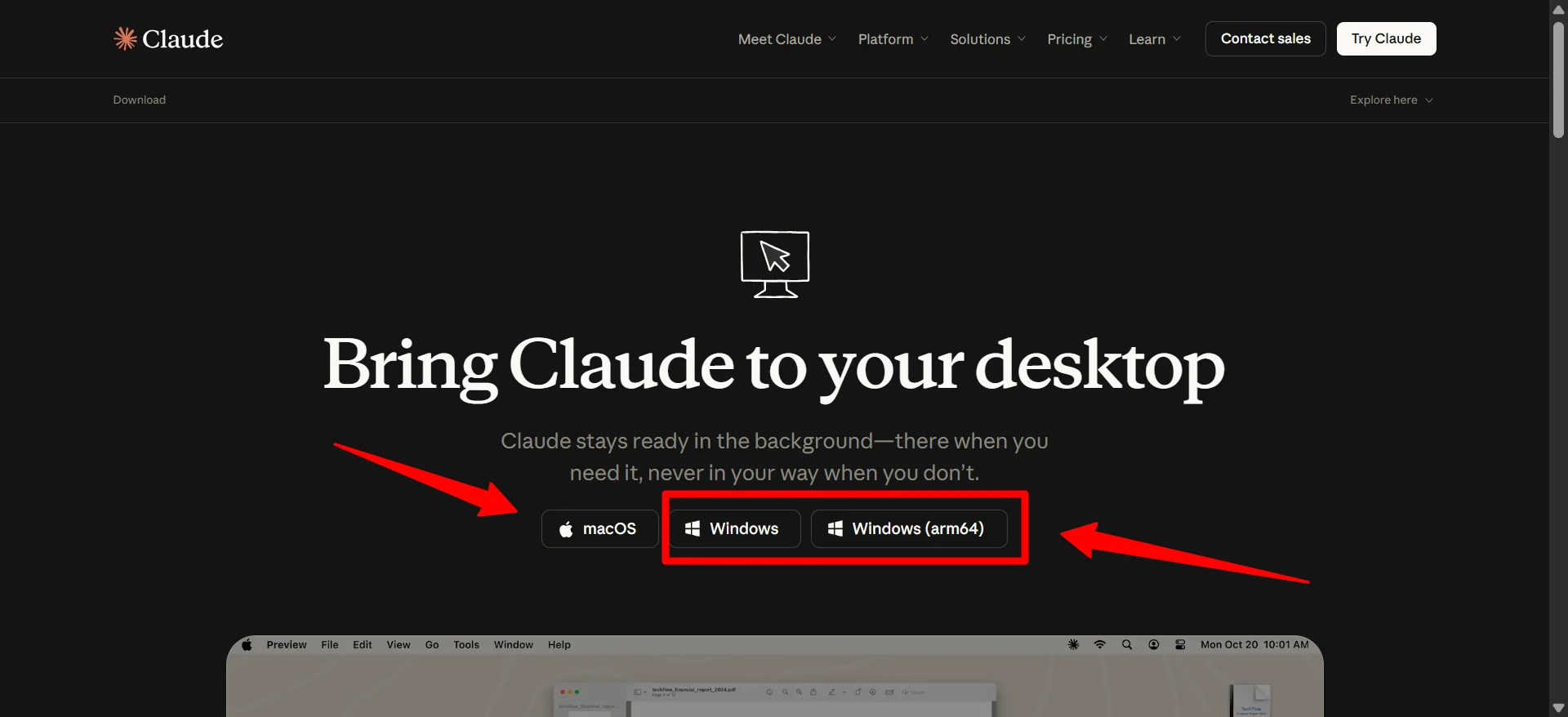
If you don’t have it already:
- Go to claude.ai/download
- Sign in to your Claude Max account
- Download Claude Desktop for Mac
- Install and open the app
Step 2: Access the Cowork Tab
- Open Claude Desktop
- Look at the left sidebar
- You’ll see three tabs: Chat, Code, Cowork
- Click Cowork
That’s it. You’re in.
Step 3: Your First Cowork Task
Let’s do something simple to understand how it works.
Create a Test Folder:
- Make a folder on your Desktop called
cowork-test - Put 10-15 random files in it (documents, images, whatever)
- Make it messy—different file types, random names
Run Your First Task:
- In Cowork, click “Work in a folder”
- Select your
cowork-testfolder - Type this:
Organize these files into subfolders by type (documents, images, spreadsheets, other). Then rename each file with today's date in YYYY-MM-DD format at the beginning of the filename.
- Claude will show you its plan
- Review it—does it make sense?
- Click “Let it run”
- Watch the sidebar—you’ll see progress updates
- When done, check your folder
Everything should be organized and renamed. That’s Cowork.
What Cowork Can Actually Do (Real Use Cases)
Let me show you what people are actually using Cowork for.
Use Case 1: Process Receipt Screenshots to Expense Report
The Task: You have 40 screenshots of receipts scattered across your phone/computer. You need an expense report for reimbursement.
The Cowork Prompt:
I have receipt screenshots in this folder. Create an Excel spreadsheet with these columns:
- Date
- Vendor
- Category (meals, travel, supplies, other)
- Amount
- Description
Extract information from each receipt image. If the date or amount isn't clear, mark it as "VERIFY". Add a totals row at the bottom. Save as "expenses-january-2026.xlsx"
What Happens:
- Claude reads each image
- Extracts text (date, vendor, amount)
- Categorizes expenses
- Creates working Excel file with formulas
- Flags items needing verification
Time: 5-10 minutes (vs 30-60 minutes manually)
Use Case 2: Research Synthesis from Multiple Sources
The Task: You have 15 PDFs, 20 bookmarked articles, and scattered notes. You need a coherent research report.
The Cowork Prompt:
I'm researching AI agents for knowledge work. I have PDFs and notes in this folder, plus these URLs: [list].Create a comprehensive research report (report.md) with:
1. Executive summary (200 words)
2. Current state of AI agents (major players, capabilities)
3. Use cases by industry
4. Technical architecture overview
5. Limitations and challenges
6. Future trends
7. Sources citedUse markdown formatting. Include specific examples and data points from the sources.
What Happens:
- Claude reads all PDFs
- Visits and extracts from URLs
- Synthesizes information
- Identifies themes and patterns
- Creates structured markdown report
- Cites sources properly
Time: 15-30 minutes (vs 3-5 hours manually)
Use Case 3: Blog Content Production Pipeline
The Task: You record voice memos while walking. You want them turned into polished blog posts.
The Cowork Prompt:
I have 5 voice memo transcripts in this folder. Each is a rough idea for a blog post.For each transcript:
1. Identify the main topic
2. Create an outline (intro, 3-4 main points, conclusion)
3. Write a 1,000-word blog post in conversational tone
4. Add SEO-friendly title and meta description
5. Save as [topic-slug].mdCreate all 5 posts in parallel if possible.
What Happens:
- Claude reads each transcript
- Identifies core ideas
- Creates structured outlines
- Writes complete posts
- Uses subagents to work on multiple posts simultaneously
- Saves each as separate markdown file
Time: 10-15 minutes (vs 2-3 hours per post manually)
Use Case 4: Desktop Cleanup and Organization
The Task: Your Desktop has 200+ files. Complete chaos. You need it organized logically.
The Cowork Prompt:
Organize my Desktop into a logical folder structure. Create folders like:
- Active Projects (things I'm currently working on)
- Archive (completed work from 2024-2025)
- Personal
- Work
- Downloads to Sort (things that need decisions)
Move files based on:
- File creation/modification dates
- File types
- File names (look for project names, client names)
- File contents (for documents)Don't delete anything. If you're unsure where something belongs, put it in "Downloads to Sort".
When done, create a summary.md explaining the new structure.
What Happens:
- Claude analyzes all files
- Creates logical folder structure
- Moves files intelligently (not just by type)
- Preserves anything uncertain
- Documents the new organization
Time: 10-20 minutes (vs never doing it because it’s overwhelming)
Use Case 5: Create Presentation from Notes
The Task: You have meeting notes from 6 sessions. You need a 10-slide deck for next week’s presentation.
The Cowork Prompt:
Create a PowerPoint presentation from my meeting notes in this folder.Structure:
1. Title slide (project name, date)
2. Executive Summary
3-4. Problem Statement (2 slides)
5-7. Our Approach (3 slides)
8-9. Results/Impact (2 slides)
10. Next StepsUse professional design. Include data points and specific examples from the notes. Save as "project-update-jan-2026.pptx"
What Happens:
- Claude reads all meeting notes
- Extracts key information
- Creates slide structure
- Generates PowerPoint with content
- Applies basic formatting
Time: 15-20 minutes (vs 2-3 hours manually)
How to Write Good Cowork Prompts
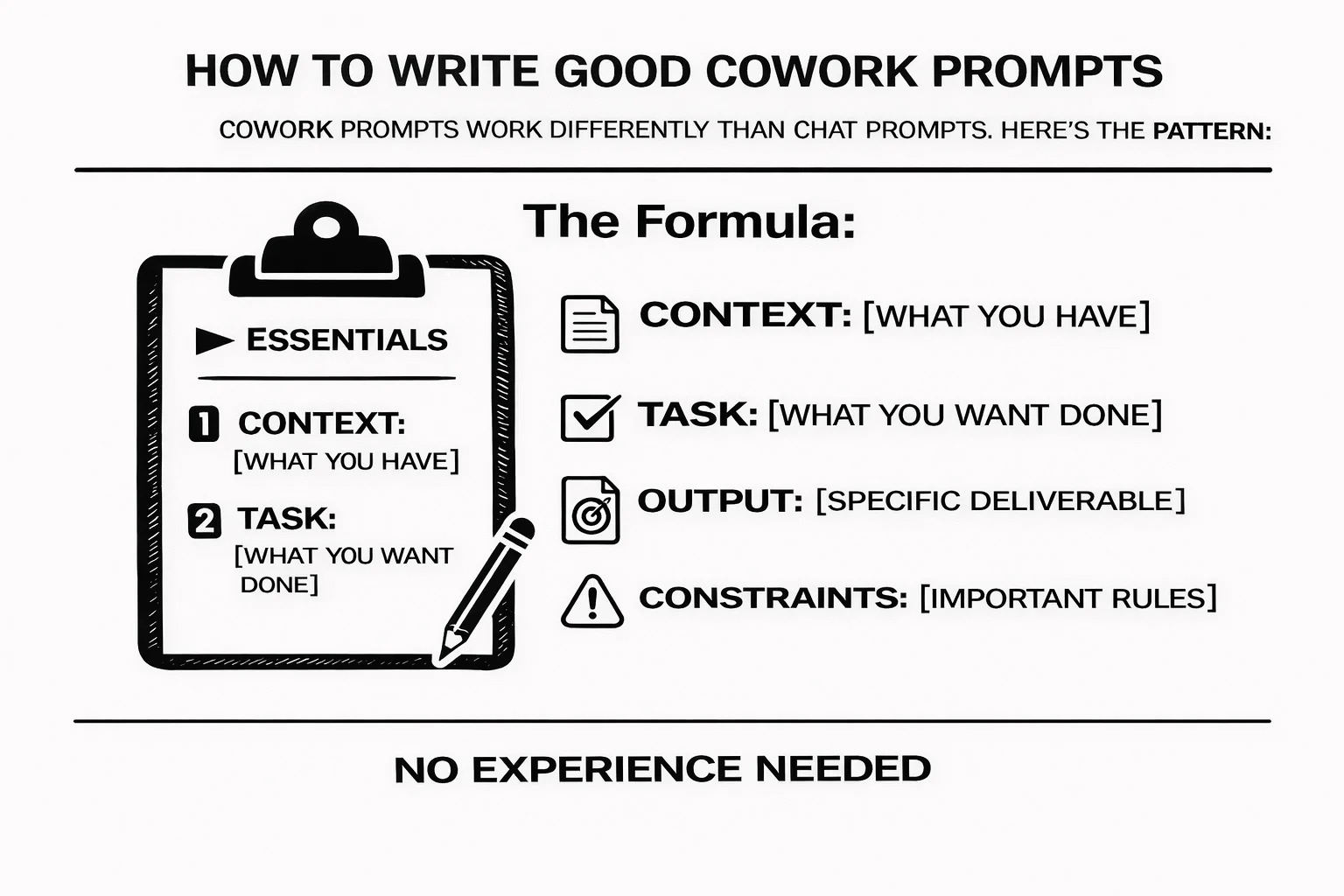
Cowork prompts work differently than Chat prompts. Here’s the pattern:
The Formula
CONTEXT: [What you have]
TASK: [What you want done]
OUTPUT: [Specific deliverable]
CONSTRAINTS: [Important rules]
Example: Bad vs Good
BAD PROMPT:
Clean up my files.
Why it’s bad: No context, vague task, unclear output, no guidance.
GOOD PROMPT:
CONTEXT: This folder has 100+ files from a research project—PDFs, notes, screenshots, drafts.TASK: Organize them into:
- /source-materials (original PDFs and research)
- /notes (my markdown notes)
- /drafts (work-in-progress writing)
- /final (completed documents)
- /media (images, screenshots)OUTPUT: Organized folder structure + organization-summary.md explaining what you did
CONSTRAINTS:
- Don't delete anything
- If a file could go in multiple places, prioritize /drafts
- Preserve all file names
Why it’s good: Clear context, specific structure, defined output, helpful constraints.
Key Principles
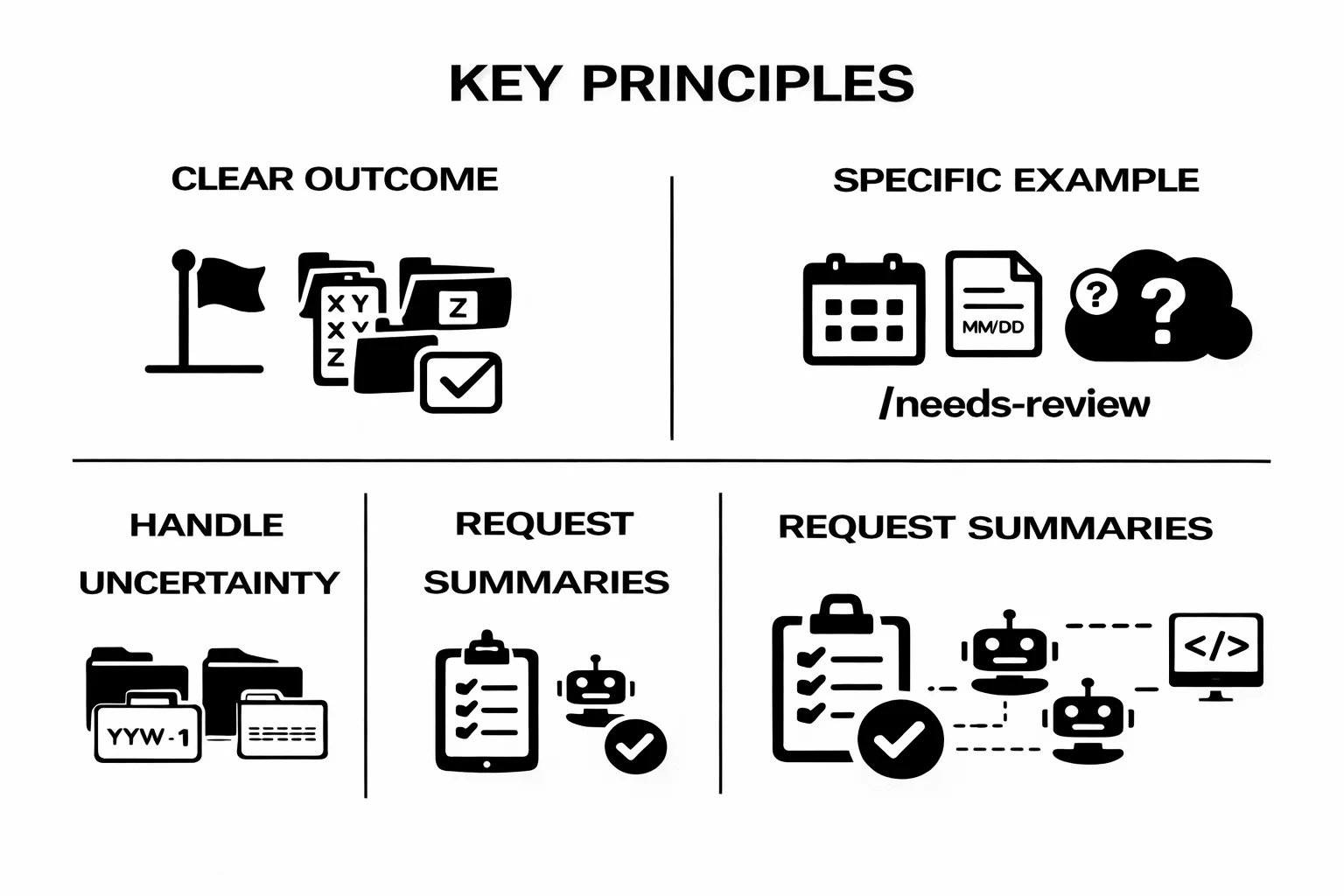
1. Define The End State Don’t say “help me with my files.”Say “create a folder structure with X, Y, Z categories, move files accordingly, generate a summary.”
2. Give Examples When Structure Matters Don’t say “organize by date. “Say “rename files to YYYY-MM-DD-original-name.ext format.”
3. Handle Uncertainty Don’t assume Claude knows your preferences. Say “if unsure where something belongs, put it in /needs-review.”
4. Request Summaries Always ask for a summary of what was done. Makes verification easier.
5. Use Parallel Processing If you have independent subtasks, say “work on these in parallel using subagents.”
Safety: What You Need to Know (Without the Fearmongering)
Cowork is powerful. That means it can cause real damage if used carelessly. Here’s how to use it safely.
The Real Risks
Risk 1: File Deletion Claude can permanently delete files if instructed. There’s no undo beyond your backups.
Solution:
- Never give Cowork access to folders with irreplaceable files
- Create a dedicated working folder for Cowork tasks
- Keep backups of important data
- Test on copies first
Risk 2: Prompt Injection Attacks If Claude reads a malicious document or website, hidden instructions could alter its behavior.
Solution:
- Limit Cowork to trusted folders
- Don’t point it at random internet downloads
- If using Claude in Chrome with Cowork, only visit trusted sites
- Watch for unexpected behavior (accessing unmentioned files, strange requests)
Risk 3: MisinterpretationClaude might misunderstand your instructions and do something you didn’t intend.
Solution:
- Review Claude’s plan before approving
- Use specific, unambiguous language
- Start with small tasks to build trust
- Add explicit constraints (“never delete”, “ask before moving”)
Safe Usage Checklist
Create a dedicated/cowork-workspace folder for most tasks
Keep sensitive files (financial docs, passwords, personal info) in separate folders Cowork never accesses
Review Claude’s plan before letting it run
Use constraints like “don’t delete anything” or “ask before significant changes”
Test complex tasks on copies first
Keep backups (you should already do this, but now it’s critical)
Watch the sidebar progress—if something looks wrong, stop it
Limit browser extension access to trusted sites
Only install verified MCP servers from the directory
When to Hit the Emergency Stop
If Claude starts:
- Accessing files or folders you didn’t mention
- Asking for sensitive information unprompted
- Discussing unrelated topics
- Requesting admin permissions
- Behaving unexpectedly
Stop the task immediately. Use the feedback button to report it to Anthropic.
Pricing and Usage Limits: What You Actually Get
Cowork isn’t free. It requires Claude Max. Here’s what that means:
The Plans
Claude Max 5x – $100/month
- 5x the usage of Pro plan
- ~225+ operations per 5-hour window
- Includes Claude Code
- Includes Cowork
- Best for most people
Claude Max 20x – $200/month
- 20x the usage of Pro plan
- ~900+ operations per 5-hour window
- Same features as Max 5x, just more capacity
- Best for power users who hit limits frequently
Key Points:
- Usage resets every 5 hours (not daily)
- Hit your limit at 2pm? Fresh allowance around 7pm
- More flexible than daily limits
- Cowork uses significantly more than Chat
- One Cowork session ≈ 10-20 chat messages
- Long-running tasks consume more
- Parallel subagents multiply usage
- No real-time usage meter
- Check usage in Settings > Usage
- You’ll know you hit limits when tasks fail with limit errors
- Extra Usage available
- Once you exceed quota, you’re billed at API rates
- Only for Max subscribers
- Can get expensive—use carefully
Is It Worth It?
Do the math:
If Cowork saves you 5 hours/month and your time is worth $50/hour:
- Value delivered: $250
- Cost: $100-200
- Net gain: $50-150/month
You should pay for Max if:
- Time is your biggest constraint
- You regularly do file organization, data processing, or document creation
- You’re building AI-powered workflows
- You also use Claude Code for development
You should NOT pay for Max if:
- You only need occasional chat assistance
- Your work doesn’t involve files or documents
- You’re on a tight budget
- You can’t justify the ROI
Pro Tip: Start with Max 5x for one month. Track what you use it for. If you hit limits frequently, upgrade to Max 20x.
Common Mistakes (And How to Avoid Them)
Mistake 1: Giving Cowork Access to Your Entire Computer
The Problem: You select your home directory. Now Cowork can see everything—financial documents, passwords, personal files.
The Fix: Create a dedicated /cowork-workspace folder. Only give access to specific project folders when needed.
Mistake 2: Vague Instructions
The Problem: “Organize my files.” Claude makes decisions you don’t like because it doesn’t know your preferences.
The Fix: Be specific. Define the structure you want. Give examples. Handle edge cases explicitly.
Mistake 3: Not Reviewing the Plan
The Problem: You immediately click “Let it run” without reading what Claude plans to do. It does something unexpected.
The Fix: Always read the plan. If anything seems off, clarify before proceeding.
Mistake 4: Using Cowork for Simple Tasks
The Problem: You use Cowork to answer a simple question. You waste usage quota and wait longer than necessary.
The Fix: Use Chat for quick questions. Save Cowork for tasks that require file access or extended execution.
Mistake 5: No Backups
The Problem: Cowork accidentally deletes important files. You have no backups.
The Fix: Maintain regular backups. Test on copies of important files first.
Mistake 6: Closing the Desktop App
The Problem: You start a long task, close the app to save battery. Task stops halfway.
The Fix: Keep Claude Desktop open. Put your computer to sleep instead of quitting the app.
Mistake 7: Assuming It Remembers
The Problem: You start a new Cowork session expecting it to remember yesterday’s work. It doesn’t.
The Fix: Cowork has no memory across sessions. Document important context in files Claude can read.
Advanced Features: When You’re Ready
MCP Connectors
What they are: Model Context Protocol servers that connect Cowork to external services.
Example: Google Drive MCP lets Cowork read and write your Google Docs directly.
How to use:
- Go to Claude Desktop Settings
- Click MCP Servers
- Browse verified connectors
- Install the ones you need
- Grant permissions carefully
Popular connectors:
- Google Drive (access your docs)
- Brave Search (enhanced web research)
- Browser control (automate web tasks)
Skills
What they are: Pre-built capabilities that Claude can invoke automatically.
Example: Document creation Skill knows how to format professional reports with proper structure.
Built-in Skills:
- Document generation (Word, PDF)
- Presentation creation (PowerPoint)
- Spreadsheet work (Excel with formulas)
- Image processing
- Data analysis
How they work:
- Skills load automatically in Cowork
- Claude decides when to use them
- You don’t need to invoke them manually
Parallel Subagents
What they are: Multiple instances of Claude working simultaneously on independent subtasks.
When to use: When you have 3+ independent tasks that don’t depend on each other.
How to trigger: Include “work on these in parallel” or “use subagents for each” in your prompt.
Example:
Research these 5 competitors in parallel:
1. Company A
2. Company B
3. Company C
4. Company D
5. Company E
Create a separate analysis file for each.
Claude spins up 5 agents. Each researches one company. All finish around the same time.
Troubleshooting: When Things Go Wrong
Problem: Cowork won’t start / Can’t see the Cowork tab
Fix:
- Make sure you’re on Claude Max plan
- Update Claude Desktop to latest version
- Restart the app
- Check if macOS is up to date
Problem: Task fails with “usage limit exceeded”
Fix:
- Wait for next 5-hour window
- Check Settings > Usage to see when limits reset
- Consider upgrading to Max 20x if this happens often
- Use Chat for simple tasks to preserve Cowork quota
Problem: Claude is accessing files I didn’t mention
Fix:
- Stop the task immediately
- Review your prompt—was it ambiguous?
- Use more specific file paths in future prompts
- Report via feedback button if behavior seems malicious
Problem: Results are not what I expected
Fix:
- Review the plan more carefully next time
- Add more constraints to your prompt
- Use examples to show exactly what you want
- Start with smaller test cases
Problem: Task is taking forever
Fix:
- Check the sidebar—is Claude stuck?
- Task might be more complex than expected
- Consider breaking it into smaller subtasks
- Stop and restart with clearer instructions
What’s Coming: The Future of Cowork
Cowork is a research preview. Anthropic is iterating rapidly based on feedback.
Confirmed Coming Soon:
- Windows support (no date yet, but officially planned)
- Cross-device sync (work on Mac, continue on another device)
- Projects integration (Cowork inside Projects with shared context)
- Memory across sessions (Cowork remembers past work)
- Chat sharing (share Cowork sessions like Chat conversations)
Likely Coming:
- More Skills for specialized tasks
- Better usage visibility and controls
- Enhanced safety features
- More MCP connectors
- Mobile support (eventually)
What the Community Wants:
- Linux support
- API access to Cowork capabilities
- Team collaboration features
- Scheduled/recurring tasks
- Better checkpoint and rollback
Your Move: The 48-Hour Challenge
Reading this won’t help you. Trying it will.
Today (Next Hour):
- Make sure you have Claude Max subscription
- Download Claude Desktop if you don’t have it
- Open the Cowork tab
- Try the test task from earlier (organize a messy folder)
Tomorrow:
- Pick one real task you’ve been procrastinating
- Write a clear Cowork prompt using the formula
- Review the plan carefully
- Let Claude do the work
- Document what worked and what didn’t
This Week:
- Identify 2-3 recurring tasks Cowork could handle
- Create a dedicated
/cowork-workspacefolder - Set up one useful MCP connector
- Build comfort with delegating work
- Share one insight with a colleague
The Real Shift
Here’s what nobody tells you about Cowork: It’s not about saving time.
Yes, it saves time. Hours of it. Daily.
But the real shift is psychological.
You stop thinking “I need to organize these files” and start thinking “I want these files organized.”
You stop being the executor. You become the director.
That’s the unlock. Not faster work. Different work.
Some people get this immediately. Others take weeks. But once it clicks, you can’t go back.
Cowork isn’t perfect. It’s in research preview. It will mess up. It has limitations. Safety matters.
But it’s the first AI agent that actually feels like an agent—not a chatbot, not a tool, but something closer to a colleague who does what you ask and lets you focus on decisions instead of execution.
The terminal barrier held this back for a year. That barrier just fell.
Start today. Don’t overthink it. Pick one messy folder. Tell Cowork to organize it. Watch what happens.
You’ll either love it or realize it’s not for you. Either way, you’ll know.
And knowing beats wondering.
Keep going: the prompt library has ChatGPT prompts and Claude prompts ready to copy and run.
Prompts for this topic
Put this article to work with ready-to-use prompts from the God of Prompt library.
Keep reading

Claude 3.7 Sonnet and Claude Code Update: Here’s Everything You Need To Know
Claude 3.7 Sonnet is here! Faster, smarter, and packed with new features like Extended Thinking Mode and Claude Code for developers. Learn how it compares to Claude 3.5 and why it’s a game-changer for AI-powered productivity.


15 Claude Cowork Tips That Save Hours Every Week
15 tested Claude Cowork tips with copy-paste prompts for each. Set up folders, global instructions, connectors, scheduled tasks, and more.

Introducing ChatGPT 5.2: Everything You Need to Know
Discover everything about ChatGPT 5.2: faster reasoning, fewer hallucinations, better coding, and 70% accuracy vs industry professionals. Here’s what changed.

The best of the blog, in your inbox
One email when notable prompts, tools, and model updates land. No spam, unsubscribe anytime.
Join 100,000+ subscribers. One email a week, real prompts, tools, and model updates. Unsubscribe anytime.