

ChatGPT for Workforce Scheduling: Prompts Guide




Creating schedules can be a time-consuming challenge. From balancing employee availability to meeting labor laws, manual scheduling is tedious and prone to errors. ChatGPT simplifies this process by generating shift schedules quickly based on your team’s data and rules.
Key Takeaways:
- Save time: Generate schedules in minutes instead of hours.
- Customizable rules: Include constraints like no back-to-back late/early shifts or fair weekend rotations.
- Format-friendly: Output schedules in Excel-ready formats like CSV or Markdown tables.
- Industry-specific tips: Tweak prompts for retail, hospitality, healthcare, and more.
With proper data preparation and prompt structuring - like organizing employee availability and shift needs - ChatGPT becomes a powerful assistant for scheduling. However, human review remains critical to ensure compliance and address unique needs. Use it as a starting point, refine as needed, and integrate into your workflow for better results.
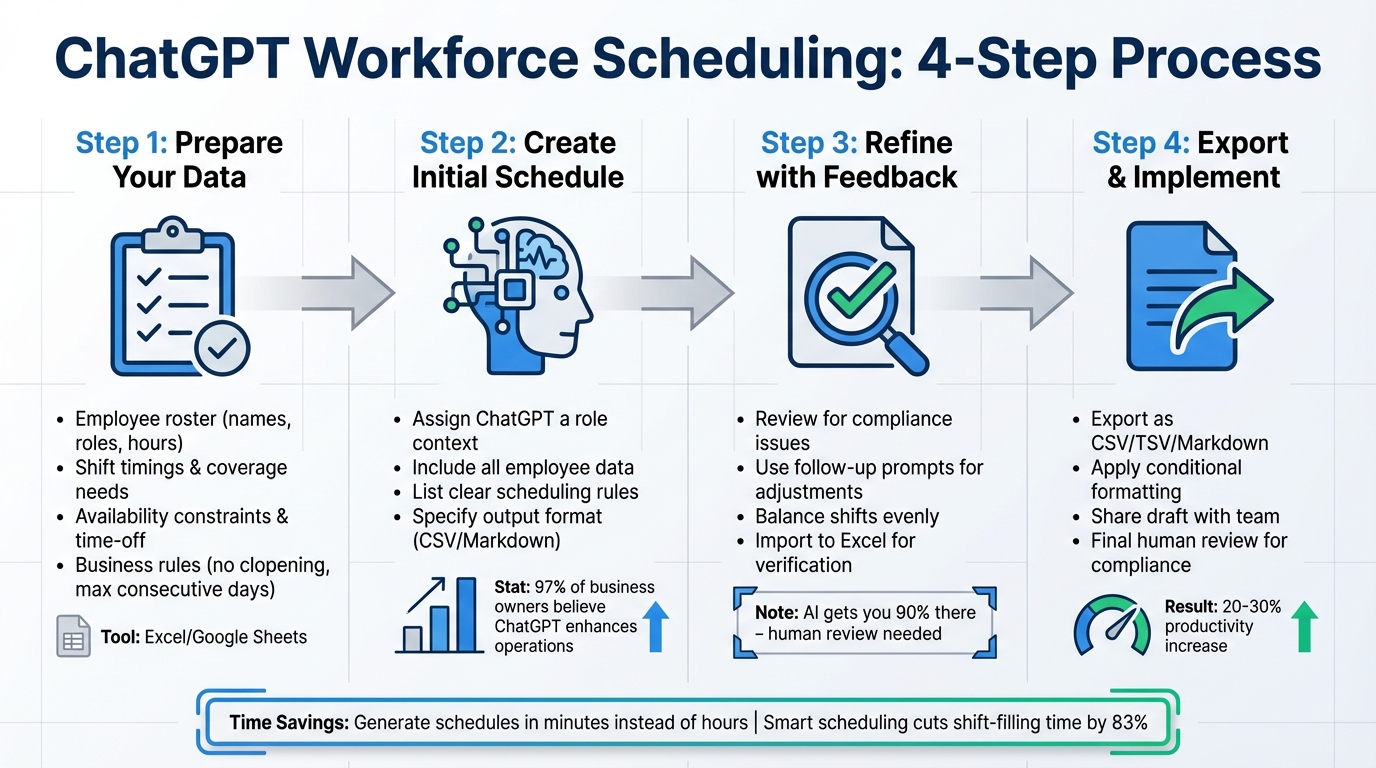
4-Step Process for Creating AI-Generated Workforce Schedules with ChatGPT
How To Create Simple Employee Schedules With ChatGPT
sbb-itb-58f115e
Preparing Data for ChatGPT Prompts
The quality of your AI-generated schedule depends heavily on the information you provide. Spencer Lanoue, Product Growth at Bricks, emphasizes this point perfectly:
"The golden rule of working with any AI is: quality input equals quality output".
To get started, you'll need to gather and organize four key types of data before writing your prompts.
Information to Gather
Start by compiling an employee roster. Include each employee's full name, their role (e.g., Barista, Supervisor, Manager), employment type (full-time or part-time), and their weekly hour constraints (both minimum and maximum). Next, define your shift timings with precision. For example: "Opening: 7:00 AM – 3:00 PM" or "Closing: 3:00 PM – 11:00 PM." Be sure to specify how many employees are needed for each shift and which roles are required - for instance, "Opening shift requires one Supervisor and two Cashiers."
You'll also need to document availability constraints. This includes noting who is unavailable on specific days (e.g., "Sarah: unavailable Wednesdays"), logging approved time-off requests, and recording any shift preferences employees may have expressed. Lastly, establish your business rules. These might include avoiding clopening shifts, giving full-time staff two consecutive days off, fairly distributing weekend shifts, setting break policies for shifts longer than six hours, and capping consecutive workdays (commonly no more than five in a row).
Tools for Organizing Data
A spreadsheet is your go-to tool for organizing this information. Use Microsoft Excel or Google Sheets to create a master document with separate tabs for "Team Details" and "Availability/Requests." This will serve as your central resource. To make data easier for AI to process, use Excel's "Format as Table" feature (Ctrl + T), which structures your data in a clear and consistent way.
Additionally, create a shift definitions reference sheet. Use codes like AM, PM, OFF, and HOLS, and map each to their respective hours (e.g., "AM = 9:00 AM – 1:00 PM, 4 hours"). This compact format streamlines data for AI processing. After generating a schedule with AI, use spreadsheet formulas like =COUNTIF() to double-check that no employee exceeds their maximum allowed hours.
With all this data properly organized, you'll be ready to craft effective scheduling prompts in the next step.
Creating and Refining Schedules with ChatGPT
Once your data is organized, you’re ready to create your first schedule. This involves three key steps: crafting a clear initial prompt (or using prompt bundles for business automation), refining the output through feedback, and customizing it to meet the specific needs of your industry.
Writing Initial Schedule Prompts
Start by assigning ChatGPT a specific role, such as "retail store manager" or "call center supervisor", to provide it with the necessary context for scheduling decisions.
Include all essential data - like your employee roster with roles (e.g., Manager, Barista, Cashier), their availability, approved time-off requests, and shift blocks (e.g., "Opening: 8:00 AM – 4:00 PM") - directly in your prompt. To avoid confusion, list clear rules, such as "no more than 5 consecutive workdays", "no clopening shifts", or "rotate weekend shifts".
Make sure to specify the format you want for the schedule. For example, you could request: "Present the schedule as a Markdown table with columns for Day, Shift, Employee Name, and Start/End Times". This makes it simple to copy the results into Excel or Google Sheets. Interestingly, 97% of business owners believe ChatGPT can enhance their operations, and efficient scheduling can boost productivity by 20% to 30%.
Once you’ve generated the initial schedule, you can refine it further based on targeted feedback.
Using Feedback to Refine Schedules
It’s normal for the first draft to have some issues. After generating the schedule, review it for compliance with all your constraints and make adjustments as needed.
Begin by performing a quick "common sense check." Look for errors like missing shift coverage, ignored time-off requests, or clopening violations. Think of this draft as a foundation to build on. Use follow-up prompts from a complete AI bundle to fix specific issues, such as: "Liam is only working closing shifts; swap one with Sarah", or "Emma requested Wednesday off, but she’s scheduled - please correct this".
You can also request broader adjustments, like balancing shifts more evenly or reducing labor costs by 10%. After each revision, double-check that the schedule still adheres to key rules, such as maximum weekly hours, required roles (e.g., at least one manager per shift), and fairness considerations. For an extra layer of review, import the schedule into Excel and use tools like conditional formatting to flag overtime risks or ensure role coverage.
Adapting Prompts for Industry-Specific Needs
To address the unique demands of your industry, tweak your prompts accordingly. Different industries face different scheduling challenges, so your approach should reflect this.
For retail, schedules might need to align with sales data and customer traffic patterns, with rules like "a manager must always be on duty" and "no clopening shifts". In hospitality, you’ll need to balance server and kitchen staff based on peak dining hours and ensure fair weekend rotations. Healthcare scheduling often requires specific certifications, such as first-aid training, and must meet strict nurse-to-patient ratios - though it’s important to note that ChatGPT isn’t HIPAA compliant. For call centers, the focus is on maintaining 24/7 coverage while balancing workloads with historical call volumes and response time goals.
When crafting prompts for these industries, include specific demand drivers. For example, a restaurant might use: "Use these occupancy rates to determine staffing for Friday and Saturday dinner shifts." A retail prompt could say: "Peak footfall occurs between 12:00 PM – 3:00 PM on weekends; ensure at least three cashiers are scheduled during these hours". Don’t forget to include skill-based requirements, such as "only employees authorized to open/close can work these shifts" or "at least one first-aid certified employee per shift".
Smart scheduling tools can cut the time needed to fill a shift by 83% and save schedulers 1–2 hours daily. By tailoring your prompts to fit your industry’s specific challenges, you can achieve these efficiencies while ensuring compliance and fairness.
Optimizing Schedules with Data and Preferences
Once you’ve created your initial schedule, the next step is making it smarter by combining historical data with employee preferences, all while meeting your business's operational demands.
Using Historical Data to Optimize Staffing
To get a clear picture of your staffing needs, gather 12–24 months of historical data. This should include records like employee shift logs, clock-in/out times, business volume metrics (e.g., sales or foot traffic), and details on seasonal trends. By analyzing this data, you can identify key patterns, such as peak hours or days, and fluctuations in demand that directly impact staffing requirements.
Before feeding this data into tools like ChatGPT, it’s crucial to clean and organize it. Use a consistent 24-hour clock format, ensure all time zones match, and structure the data into simple, easy-to-read tables. When businesses use AI-driven tools to analyze these patterns, they often see labor cost reductions of 5–15%.
Once you’ve extracted insights, translate them into clear, actionable rules for your scheduling prompts. For example: “Fridays between 12:00 PM and 3:00 PM require at least four cashiers,” or “Saturday dinner shifts need two servers and one kitchen manager.” Scheduling based on data like this can reduce absenteeism by 10–20% and cut employee turnover by 15–30%. While historical data provides the foundation, integrating employee preferences ensures schedules are both efficient and fair.
Balancing Employee Preferences and Business Needs
Start by defining your non-negotiable requirements, such as minimum staffing levels, certifications, and operating hours. Once those are set, layer in employee preferences, like preferred shift times, part-time availability, and time-off requests.
To create a fair schedule, include rules in your prompts that account for equity and employee well-being. For instance, specify: “Rotate weekend shifts evenly among staff” or “Avoid assigning clopening shifts” to reduce burnout. Collect structured data on employee availability, approved time-off, and maximum weekly hours to ensure compliance with labor laws and prevent unintended overtime. For example, you might write: “Sarah prefers morning shifts and is available Monday–Thursday with a maximum of 20 hours per week.”
Treat the AI-generated schedule as a starting point. Use follow-up prompts to address conflicts, like: “Ben requested Friday off but is scheduled; please swap him with Maria,” or “Spread closing shifts more evenly across the team”. Cross-training employees for multiple roles can also help you accommodate preferences without leaving essential positions unstaffed. These tweaks not only improve scheduling efficiency but also demonstrate thoughtful planning.
For more tips on crafting effective AI prompts, check out God of Prompt (https://godofprompt.ai).
Next, we’ll dive into exporting and integrating these optimized schedules into your business workflow.
Exporting and Implementing ChatGPT Schedules
Once you've fine-tuned your schedule, the next step is to format it for practical use and incorporate it into your team's daily workflow.
Requesting Output Formats
You can request the schedule in CSV format, which works seamlessly with Excel, Google Sheets, or HR systems. For instance, you could prompt ChatGPT with: "Provide this schedule in CSV format with columns for Employee Name, Day, Start Time, End Time, and Role."
If you want a quick visual overview, ask for a Markdown table that can be copied and pasted directly into a spreadsheet. For Excel users, TSV (tab-separated values) might be more convenient, as Excel automatically separates data into columns.
If the pasted data appears in a single column, use Excel's "Text to Columns" feature or Google Sheets' "Paste Special > Values only" to organize it correctly. Once formatted, convert the data into an Excel table using Ctrl+T (or Cmd+T on a Mac).
To make the schedule easier to interpret, apply conditional formatting, like color-coding shifts, or add formulas for verification. For example, you could use a formula like =COUNTIF to ensure no employee exceeds their maximum weekly hours. Spencer Lanoue from Bricks highlights the importance of this step:
"AI gets you about 90% of the way there. Always do a final review to catch any logical errors or to make small, human-centric adjustments."
Once your schedule is formatted, you're ready to integrate it into your business processes or explore other AI tools for task scheduling to further automate your operations.
Integrating Schedules into Business Processes
Keep a master spreadsheet as your single source of truth for all employee data. To navigate large rosters efficiently, use Excel's "Freeze Panes" feature (found under the View tab) so that key details like employee names and day labels stay visible while scrolling.
Before finalizing, share the draft schedule with your team for feedback. This early review helps identify conflicts or issues. If changes are needed, you can ask ChatGPT for specific updates, such as: "Using the previous schedule, swap Alice's Friday shift with Charlie's." Then, update the affected section accordingly.
Research suggests that 97% of business owners believe ChatGPT can enhance operations, with smarter scheduling increasing worker productivity by 20% to 30%. However, as the RosterElf Team points out:
"ChatGPT doesn't replace Excel - it augments it."
While AI can handle most of the heavy lifting, human oversight is still essential. Managers should review the last 10% of the schedule to address unique needs, such as unrecorded appointments or personal requests. This balance ensures your schedule is both efficient and considerate.
Limitations and Best Practices
Understanding ChatGPT's Limitations
ChatGPT can be a helpful tool for scheduling, but it’s important to recognize its boundaries and establish safeguards to ensure its outputs meet industry standards.
As a text-predicting model, ChatGPT doesn’t have the specialized programming required for handling complex scheduling tasks. For example, a six-week HR compliance study showed that GPT-3 struggled with intricate leave scenarios, highlighting the need for human intervention. Additionally, it can sometimes fabricate details or fail to adapt to last-minute changes, which means manual updates are always necessary.
Privacy is another key concern. Entering sensitive employee information into public AI models could breach HIPAA regulations and other privacy laws. To avoid this, always anonymize data by replacing personal identifiers like names or social security numbers with placeholders or generic IDs.
Research underscores the risks of over-reliance on AI for complex tasks. In a 2023 study by Harvard Business School and Boston Consulting Group, 758 consultants were tested using GPT-4 for business analysis. While the AI excelled in creative tasks, those who used it for intricate, multi-source analyses without validating its outputs performed nearly 90% worse than their counterparts who avoided it altogether. Similarly, the MIT Sloan School of Management found that employee performance could drop by 19% when using generative AI for tasks it wasn’t equipped to handle.
Clearly, understanding these limitations is critical to using ChatGPT effectively and responsibly in scheduling.
Best Practices for Successful Scheduling
To address these challenges, a human-centered approach to AI scheduling is essential. Treat every schedule generated by ChatGPT as a draft that requires thorough human review. For example, manually check for compliance with local labor laws, union agreements, and overtime regulations before finalizing. Simple tools like Excel’s =COUNTIF function can help ensure no employee exceeds their maximum allowed hours. Additionally, create internal guidelines to define which tasks are suitable for AI and which demand human oversight.
Consider using the PACT Framework when crafting prompts for ChatGPT. This means clearly defining the Purpose (your scheduling goal), Audience (who will use the schedule), Context (company policies and culture), and Tone (formal or casual). This structured approach provides the AI with the necessary context to get consistent AI results.
Before fully implementing AI-generated schedules, test them on historical data to evaluate their accuracy against past successful schedules. It’s also worth noting that ChatGPT’s free version only includes knowledge up to October 2023, so it may not account for recent updates in labor laws.
Conclusion
ChatGPT simplifies workforce scheduling by significantly reducing the time and effort required to manage complex constraints. It can create a complete weekly schedule in under a minute - a process that would otherwise take hours of manual work. By handling variables like employee availability, skills, shift preferences, and time-off requests, it’s especially useful for small businesses that lack the budget for advanced scheduling software.
A striking 97% of business owners believe ChatGPT can benefit their operations. Smart scheduling powered by AI has the potential to increase worker productivity by 20% to 30%, which can lead to notable improvements in overall efficiency. These gains free up time for strategic planning and promote better employee morale by ensuring shifts are distributed more equitably.
However, ChatGPT works best as a drafting tool rather than a standalone solution. To maximize its effectiveness, you’ll need to prepare your data, establish clear rules - like maximum weekly hours and required rest periods - and carefully review the output for accuracy and compliance. As the RosterElf Team wisely points out:
"AI can save time - but it doesn't understand your business context the way you do. Always verify before sharing".
A hybrid approach is ideal: let ChatGPT handle the initial drafts and revisions, while human oversight ensures legal compliance and fairness. To protect sensitive employee information, use anonymized data like IDs instead of full names, and rely on clean, standardized Excel templates for consistent input.
When used thoughtfully, ChatGPT becomes an invaluable tool for balancing business requirements with employee satisfaction, cutting down on hours of manual scheduling. By following these best practices, you can effectively integrate AI into your scheduling process and overcome common challenges.
Explore more prompt guides and strategies for workforce scheduling at God of Prompt (https://godofprompt.ai).
FAQs
What’s the minimum data I need to give ChatGPT to build a workable schedule?
To put together a practical schedule using ChatGPT, you'll need to share some essential details. This includes employee names, their roles, and the types of shifts you’re planning (like morning, afternoon, or night). You'll also want to specify the number of shifts per week, along with employee preferences, availability, and any specific constraints - such as legal rules or part-time agreements. Providing this information helps ensure that the schedule works for both the team and the organization.
How do I verify an AI-generated schedule won’t break labor rules or cause overtime?
To make sure an AI-generated schedule stays within labor law boundaries and avoids overtime issues, leverage AI tools designed to flag potential violations, monitor compliance, and adjust to legal requirements. Set up scheduling systems with features that track working hours, rest breaks, and overtime limits to ensure everything stays on track. It’s also essential to routinely review and update these settings to reflect the specific labor laws in your area.
How can I export ChatGPT’s schedule into Excel or Google Sheets without formatting issues?
To seamlessly export ChatGPT’s schedule into Excel or Google Sheets without running into formatting problems, there are a few effective approaches you can try:
- Copy and Paste with Table Format: Ask ChatGPT to generate the schedule in a table format. This ensures the structure stays intact when you copy and paste it into your spreadsheet tool.
- Export as CSV: For Google Sheets, you can prompt ChatGPT to create the schedule in a CSV format. This makes it easier to upload the file directly into Sheets while maintaining proper formatting.
These steps help keep the schedule organized and ready for analysis or editing in both Excel and Google Sheets.
Related Blog Posts

Loved by Business Owners


Based on 1K reviews
Get smarter on AI every week.
Ready to transform your business?